
How to Use the Equation Editor in Helperbird
Learn what every button in Helperbird's Equation Editor toolbar does, what the Menu button holds, the limits worth knowing, and the guide for each job.
On this page
The Equation Editor is a full-page space for writing maths, and it opens in its own browser tab. This guide is the map of its toolbar: what each button does, and which guide covers it. The Equation Editor is part of Helperbird Pro.
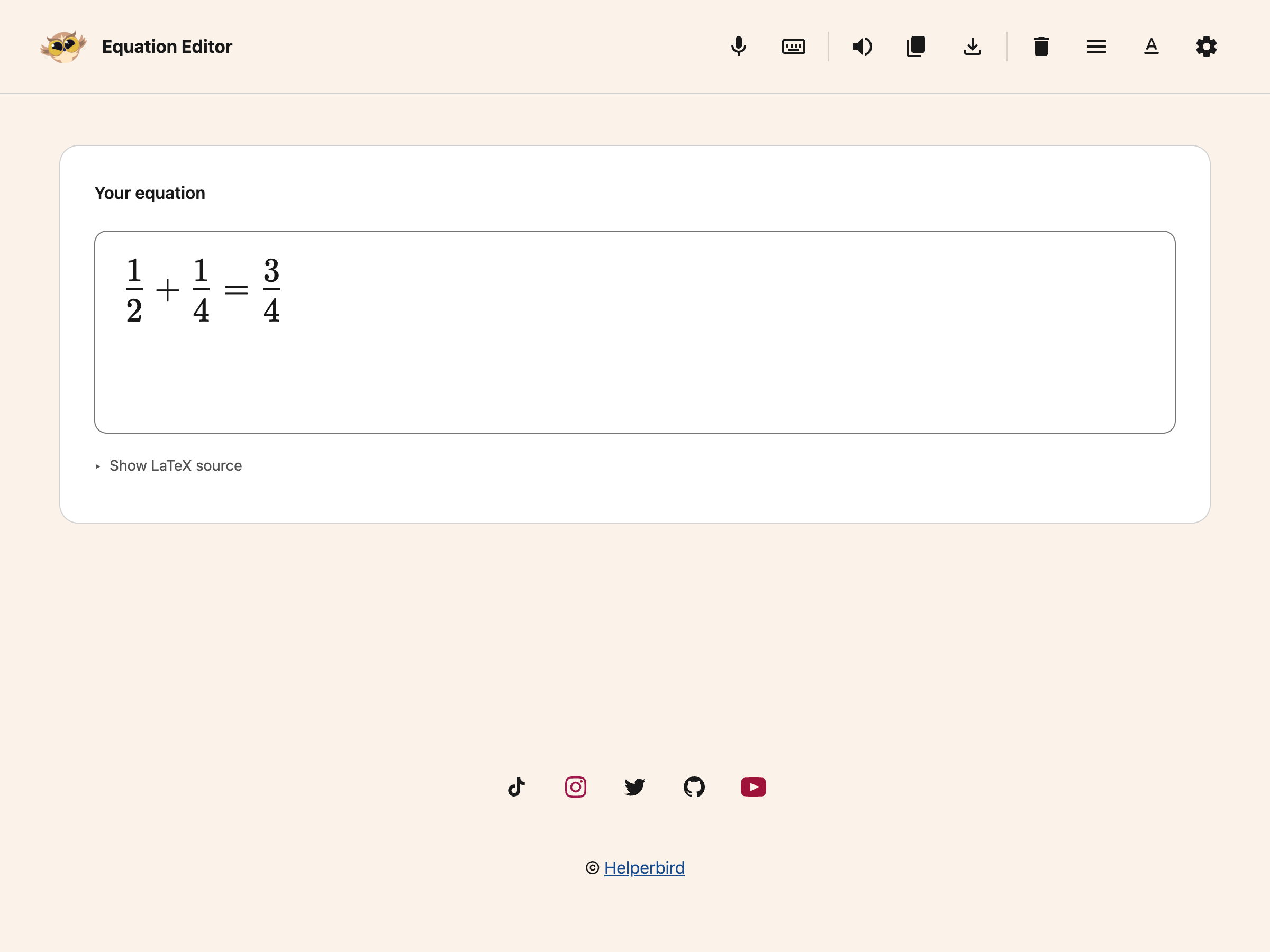
Your equation is typeset directly in the editing field. Open Show LaTeX source below it to see its source. When it is empty, choose one of the example equations or type your own. The sample placeholder is guidance, not content that will be exported.
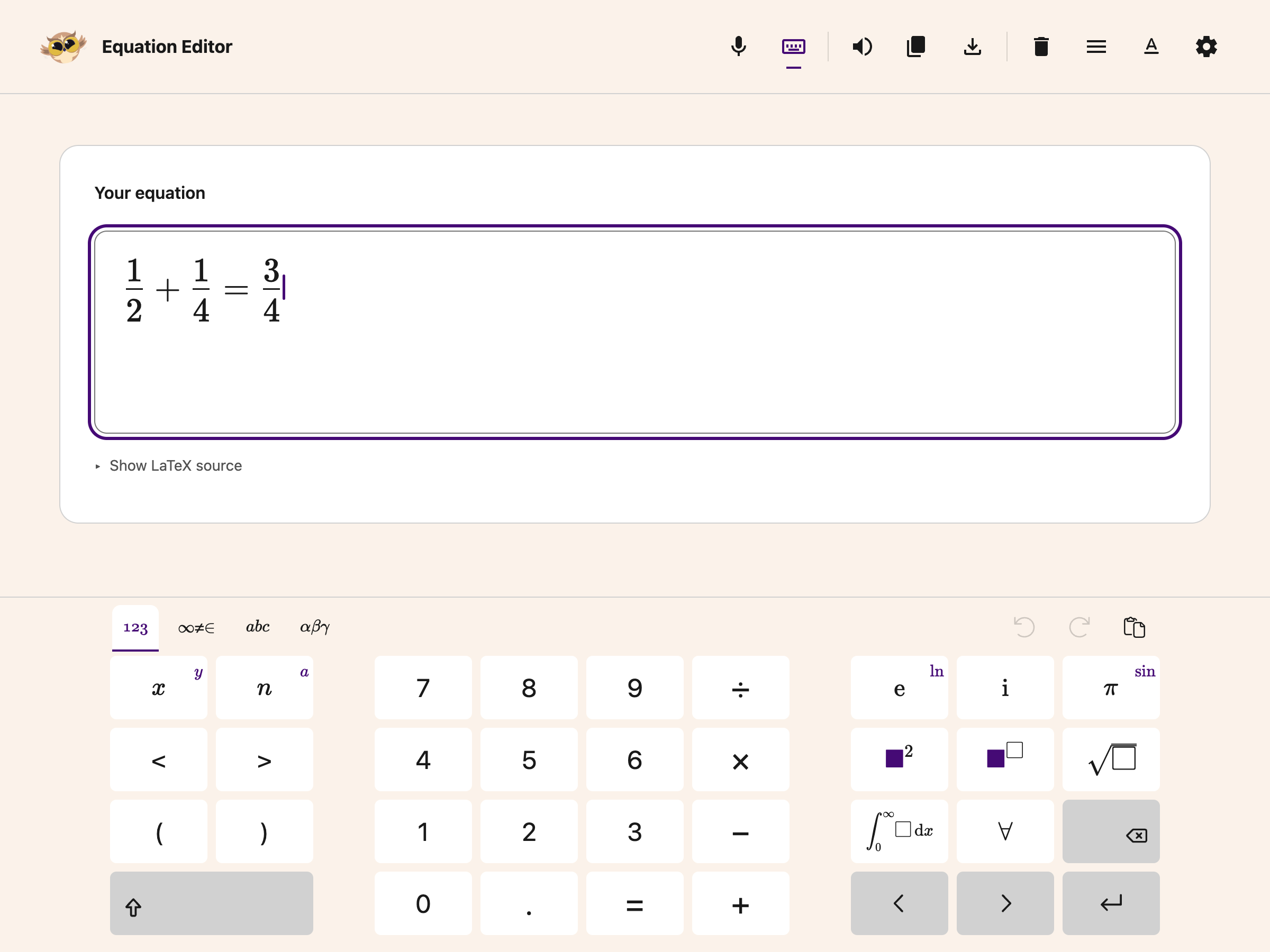
Show or hide the math keyboard with its toolbar button to make room while writing. The copy and download buttons keep their existing formats.
To get the editor open, see opening the Equation Editor.
What Each Toolbar Button Does
 View full-size image (opens in a new tab)
| Button | What it does |
|---|---|
| Read aloud | Speaks the equation in maths language, so x^2 becomes "x squared" rather than "x caret two" |
| Copy | Copies the equation as LaTeX, MathML or an image. Three formats, one for each place you might paste it |
| Download as image | Saves the equation as a PNG file on your computer |
| Voice typing | Say the equation instead of typing it. It follows the Math, Chemistry or Physics mode you picked in the popup |
| Show math keyboard | Symbols you cannot type, such as Greek letters and integrals |
| Clear | Empties the box so you can start again |
| Text settings | Changes the displayed equation size |
| Settings | Changes width and theme, opens keyboard shortcuts, and resets display preferences |
Read aloud, Copy, Download as image and Clear are greyed out until there is something in the box. Show math keyboard and Voice typing stay available on an empty box, which is the point of them.
The Menu Button
The Menu button sits beside Text settings and Settings. It opens the maths field's own menu rather than a Helperbird one, so what is in it belongs to the field itself. It is the only part of this page without a separate guide.
Reading and Layout Controls
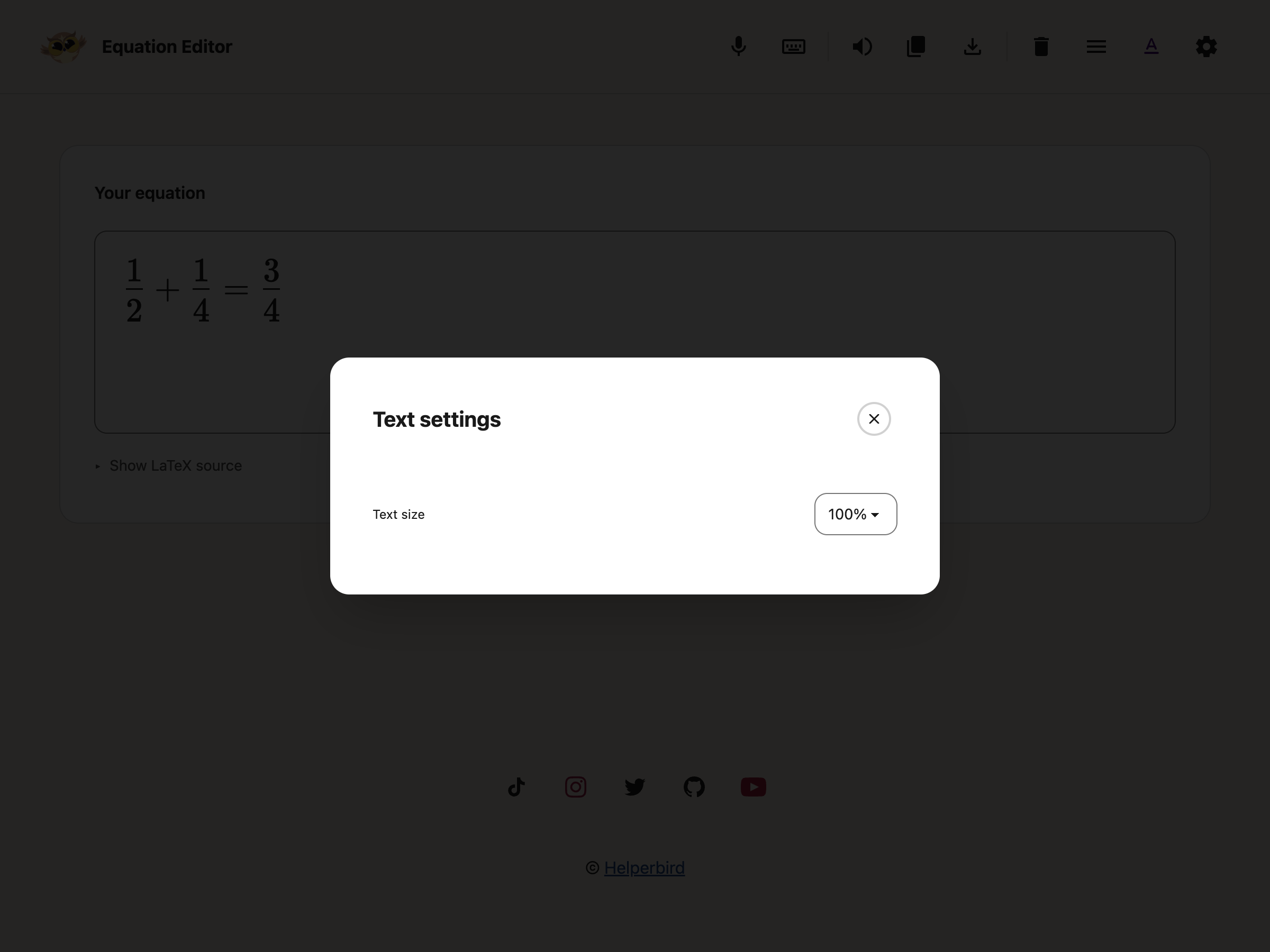
Text settings changes the displayed equation size from 100% to 200%. Math symbols keep their usual font and spacing, and the exported equation stays the same.
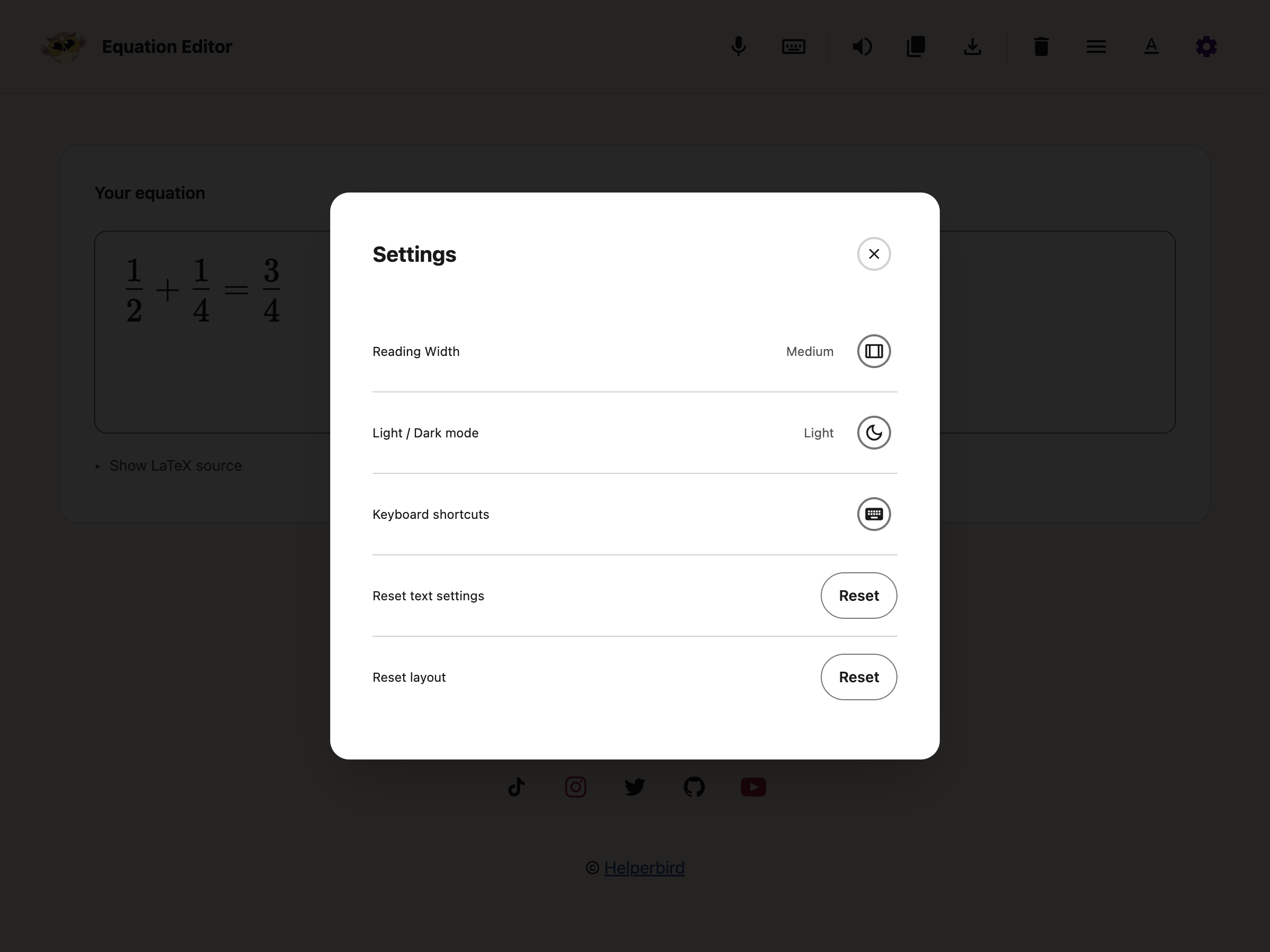
Settings includes width and light/dark controls, plus Keyboard shortcuts. Choose Reset text settings to restore the equation size, or Reset layout to restore the default width and light theme. These choices save automatically and do not clear your equation.
Use Alt + Shift + T for Text settings, Alt + Shift + S for Settings, and Alt + Shift + D to switch themes. The shortcut list also shows the existing copy, download, reading and voice controls.
The math keyboard opens when you choose Show math keyboard. It follows your theme and leaves room to reach the footer links. Closing it gives that space back to the page.
 View full-size image (opens in a new tab)
 View full-size image (opens in a new tab)
 View full-size image (opens in a new tab)
Known Limits
- Read aloud hands the equation to Microsoft Immersive Reader, which opens as its own reading window. It is not the same thing as Helperbird's text to speech on a web page, and it does not use the voice and speed you set there.
- A matrix or an aligned system with more than one row can come out with its rows overlapping in that reading window. Your equation is fine, the reader draws it badly.
- If Read aloud says it could not read the equation, check the box for a typo. A half-finished expression is the usual cause.
- This app is for writing maths. To read maths that is already on a page or in a picture, use the Screenshot Reader instead.
Voice typing stops after 12 seconds without recognized speech. Your final phrase is kept. Press the microphone when you are ready to continue.
You can also insert maths without leaving a PDF or Notepad. Use More options → Insert equation in the PDF Reader, or the equation button in Notepad. The dialog has a full-width math keyboard and More options for extra controls.
A Guide for Each Part
- Open the Equation Editor
- Write an equation
- Hear it read aloud
- Copy it
- Download it as an image
- Add an equation to a PDF or Notepad
- Dictate it with your voice
For what you can say while dictating, see speech to math and chemistry and physics voice typing.
Video Tutorial
Need Additional Help?
If you have any questions or run into any issues, please contact the Helperbird support team. You can reach us at Helperbird support. We are happy to help you get the most out of Helperbird.
Printed from the Helperbird Help Center · Updated September 25th, 2026
Questions? We are happy to help — helperbird.com/support