
How to Use the Screenshot Reader
Learn how Helperbird's Screenshot Reader pulls text and equations out of any image, screenshot, or scanned page, then copies, reads, translates, or explains it.
Jump to the stepsOn this page
Renamed in Helperbird 2026.7.28: Extract text (OCR) is now called the Screenshot Reader. It now reads equations automatically alongside ordinary text in the same capture, so there is no separate maths mode to switch on, and each capture goes to a single destination you choose rather than to several at once.
What is the Screenshot Reader?
The Screenshot Reader uses OCR (Optical Character Recognition) to read the text in a picture. Text that is stuck inside an image becomes real text you can copy, edit, read aloud, or translate.
One capture handles words and equations together. If the area you draw has both in it, you get both, in the order they appear on the page. There is no maths mode to switch on.
Listen opens Helperbird's text to speech, so the voice, speed and other reading settings are whatever you have chosen there. See how to use text to speech.
This is useful for text in screenshots, infographics, scanned documents, or any image where you cannot select the text normally.
Screenshot Reader is a Helperbird Pro feature. On the free plan, choosing it opens Unlock Helperbird Pro with the trial offer and a link for existing subscribers. Enter your subscription key or log in if you already have Pro. See what Helperbird Pro includes.
Who is This For?
This feature is helpful for:
- People who need to copy text from images or screenshots
- Anyone who wants to listen to text that is in an image
- Students who need to work with text from infographics
- People who want to translate text in images
- Anyone who encounters inaccessible text in pictures
Step 1: Open Helperbird
Click the Helperbird icon in your browser toolbar. It looks like a small owl and is usually in the top-right corner of your browser.
This will open the Helperbird menu.
Step 2: Find the Screenshot Reader
Scroll down to the bottom of the Helperbird menu. You will see a section called All Features.
Click the arrow next to All Features to expand it. Look through the list until you see Screenshot Reader, then click Open on that row.
If you are looking for the old name, searching the popup for "extract text" or "ocr" still finds it.
A panel will appear with several options you can configure before capturing text.
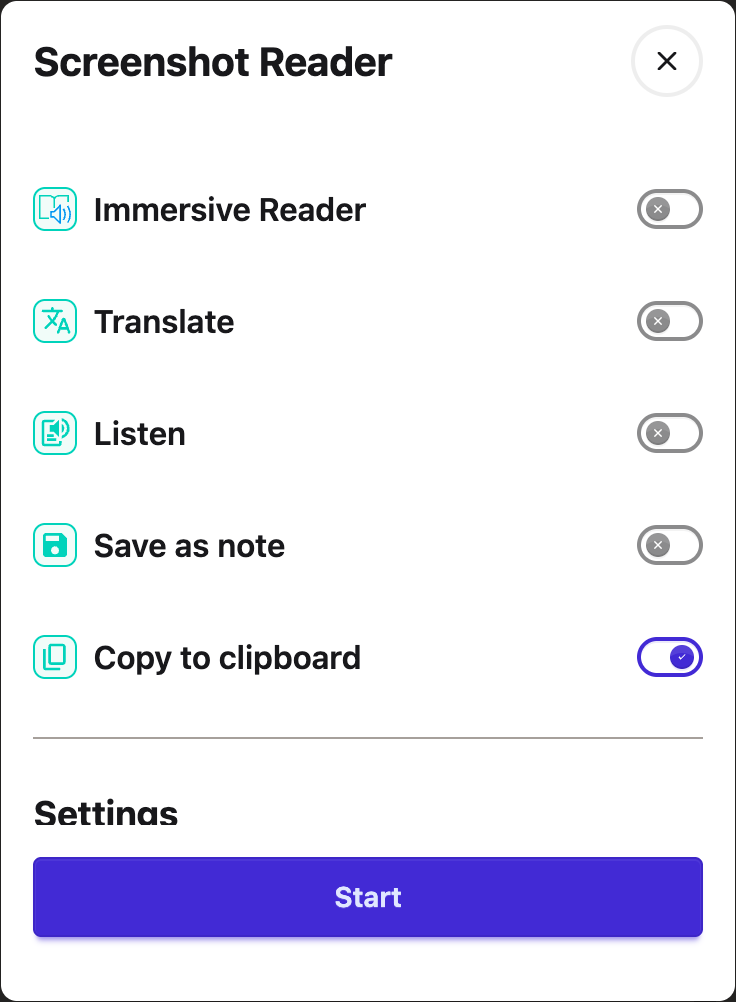
Step 3: Choose Where the Text Goes
Your capture goes to one destination, not several. Turning one on turns the others off, and Copy to clipboard is the default.
Immersive Reader - Open the text in Immersive Reader for easier reading.
Translate - Open the text translated into your chosen language.
Listen - Have the text read aloud. This opens Helperbird's text to speech, so it uses the voice and speed you have chosen there.
Save as note - Save the text as a sticky note on the page.
Copy to clipboard - Copy the text to your clipboard. This is the default.
Under Settings there is one more toggle:
- Explain mode - Turn this on to get a plain-language explanation of what you capture instead of the exact text. Good for confusing paragraphs, charts, diagrams, tables, and formulas. The explanation appears in a card on the page with buttons to listen, copy, or close it.
 View full-size image (opens in a new tab)
After choosing your options, click the Start button.
Step 4: Select the Area
After clicking Start, your cursor will change to a crosshair.
Click and drag to draw a rectangle around the area of the screen that contains the text you want to extract.
Helperbird will show "Extracting text..." while it processes the image.
 View full-size image (opens in a new tab)
Step 5: Use the Extracted Text
The text arrives at the one destination you picked in Step 3:
- Copy to clipboard puts it on your clipboard, ready to paste anywhere
- Immersive Reader opens it there, with any equations laid out as maths rather than flattened into a line of symbols
- Listen reads it aloud
- Translate opens it in your chosen language
- Save as note puts it in a sticky note on the page
With Explain mode on, a card appears with a plain-language explanation instead of the exact text.
 View full-size image (opens in a new tab)
Tips
- For best results, make sure the text in the image is clear and readable. Very small, blurry, or handwritten text may not be recognized accurately.
- Use Explain mode for charts, diagrams, and formulas. It gives you a plain-English breakdown instead of raw text.
- You can also open the Screenshot Reader from inside the PDF Reader. See the next section.
Using Screenshot Reader in the PDF Reader
Screenshot Reader is also built into Helperbird's PDF Reader, so you do not have to leave your document to use it.
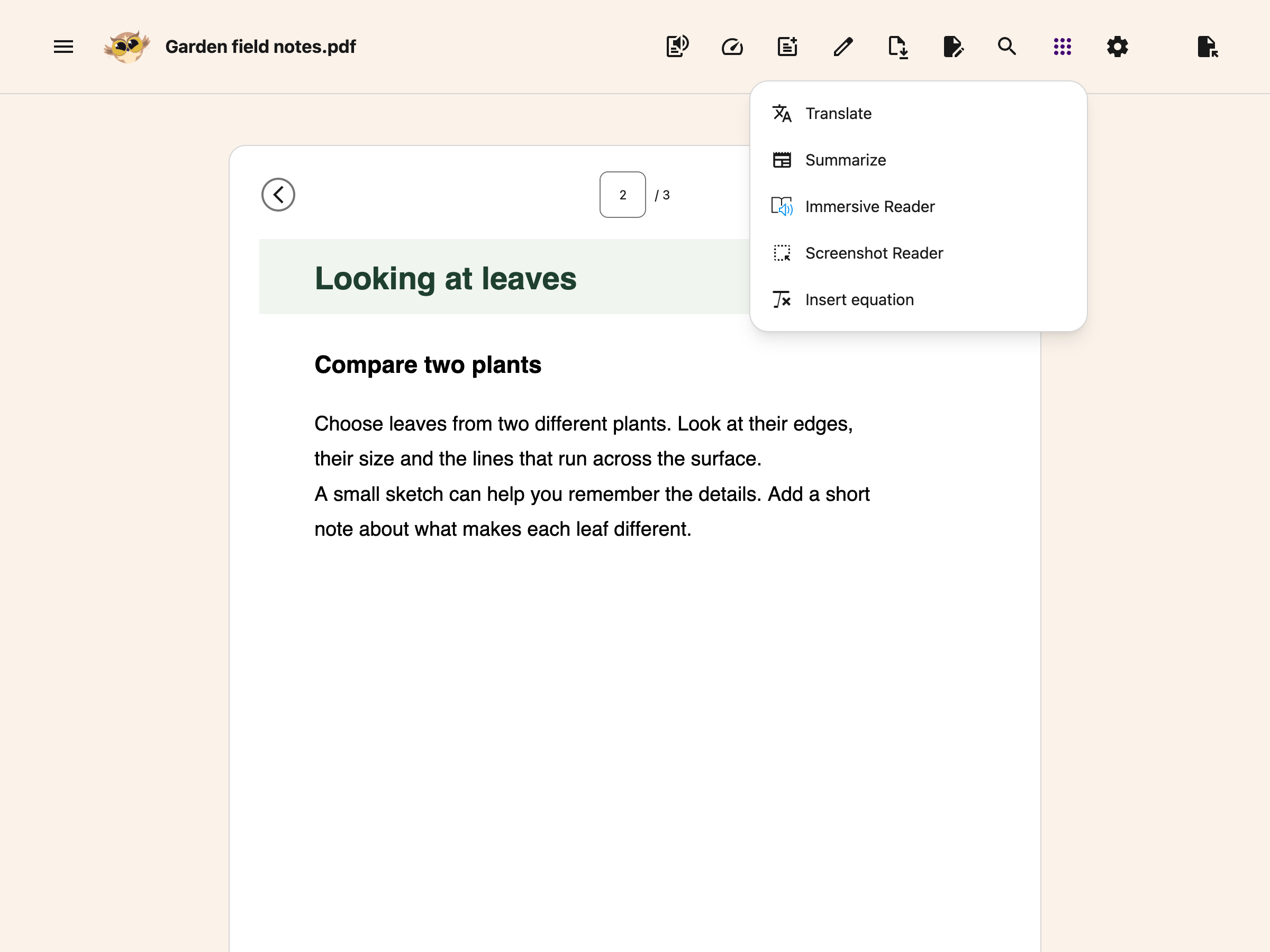
Open your PDF, then click the round button with the dots grid icon in the toolbar. It is the last button in the group, and it is labelled Tools.
 View full-size image (opens in a new tab)
Choose Screenshot Reader from the menu and you can capture a region of the page and pull the text out of it.
It behaves exactly the same way there as it does on a website, and it uses the same settings, so anything you have chosen here carries over. See how to use the Tools menu in the PDF Reader.
Guides for Each Part
- Use Explain mode to get a plain-language explanation instead of the raw text.
- How equations are handled - automatically, with no mode to choose.
Video Tutorial
View full-size image (opens in a new tab)
Need Additional Help?
If you have any questions or run into any issues, please contact the Helperbird support team. You can reach us at Helperbird support. We are happy to help you get the most out of Helperbird.
Printed from the Helperbird Help Center · Updated September 28th, 2026
Questions? We are happy to help — helperbird.com/support