
How to Change Letter Spacing on Any Website
Learn how to use Helperbird's change letter spacing. Complete guide for improving web accessibility and reading support.
Jump to the stepsOn this page
What is Letter Spacing?
Letter spacing adds extra space between each letter in the text. Instead of letters being close together, they are spread out more.
For example, the word "hello" with increased letter spacing would look like "h e l l o" with small gaps between each letter.
This can make text much easier to read because the letters do not blend together.
Who is This For?
This feature is helpful for:
- People with dyslexia who find tightly spaced letters hard to read
- Anyone who experiences visual crowding when reading
- People with visual stress or eye strain
- Students who struggle to distinguish between similar letters like "b" and "d"
- Anyone who finds spread-out text easier to read
Step 1: Open Helperbird
Click the Helperbird icon in your browser toolbar. It looks like a small owl and is usually in the top-right corner of your browser.
This will open the Helperbird menu.
Step 2: Open the All Features Section
Scroll down to the bottom of the Helperbird menu. You will see a section called All Features.
Click the arrow next to All Features to expand it and show all available features.
Step 3: Find Text Settings
Look through the list of features until you see Text settings.
It has a yellow icon with the letter "T" on it.
Step 4: Open Text Settings
Click the arrow button next to Text settings to open it.
A panel will appear with all of the text options in a single scrollable list, including font, text size, word spacing, and letter spacing.
Step 5: Turn on Letter Spacing
In the panel, scroll down until you see Letter spacing.
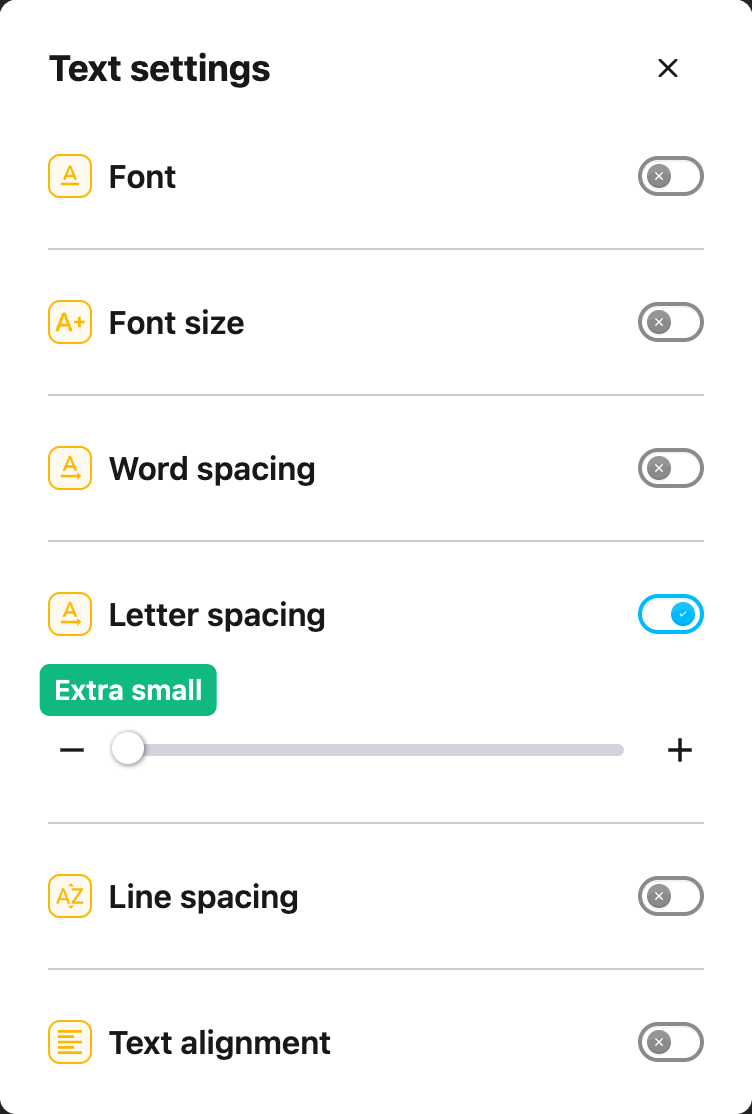
Click the toggle switch next to it to turn it on. The toggle will turn blue when it is enabled.
 View full-size image (opens in a new tab)
Step 6: Adjust the Spacing
Once Letter spacing is turned on, a slider will appear below the toggle, with a minus button on the left and a plus button on the right.
Drag the slider to the right to increase the space between letters. Drag it to the left to decrease the spacing. You can also click the minus and plus buttons to change the spacing one step at a time.
The changes will apply to the website immediately, so you can see the effect as you adjust the slider.
Tip: Start with a small increase. Even a little extra space between letters can make a big difference in readability. Too much spacing can make words harder to recognize, so find the balance that works best for you.
Video Tutorial
Need Additional Help?
If you have any questions or run into any issues, please contact the Helperbird support team. You can reach us at Helperbird support. We are happy to help you get the most out of Helperbird.
Printed from the Helperbird Help Center · Updated September 22nd, 2026
Questions? We are happy to help — helperbird.com/support