
How to Change Text Alignment on Any Website
Learn how to use Helperbird's change text alignment. Complete guide for improving web accessibility and reading support.
Jump to the stepsOn this page
What is Text Alignment?
Text alignment controls how text is positioned horizontally on the page. You can align text to the left edge, center it, align it to the right edge, or justify it so both edges are even.
Different alignment styles can make reading easier depending on your preferences and the type of content you are reading.
Who is This For?
This feature is helpful for:
- People who find left-aligned text easier to track
- Anyone who prefers a specific text layout
- People with dyslexia who may find certain alignments easier to read
- Students who want consistent formatting across different websites
- Anyone who finds justified text creates uneven spacing that is hard to read
Step 1: Open Helperbird
Click the Helperbird icon in your browser toolbar. It looks like a small owl and is usually in the top-right corner of your browser.
This will open the Helperbird menu.
Step 2: Open the All Features Section
Scroll down to the bottom of the Helperbird menu. You will see a section called All Features.
Click the arrow next to All Features to expand it and show all available features.
Step 3: Find Text Settings
Look through the list of features until you see Text settings.
It has a yellow icon with the letter "T" on it.
Step 4: Open Text Settings
Click the arrow button next to Text settings to open it.
A panel will appear with all of the text options in a single scrollable list, including font, text size, spacing, and line height.
Scroll down to the bottom of the list. This is where you will find the text alignment option.
Step 5: Turn on Text Alignment
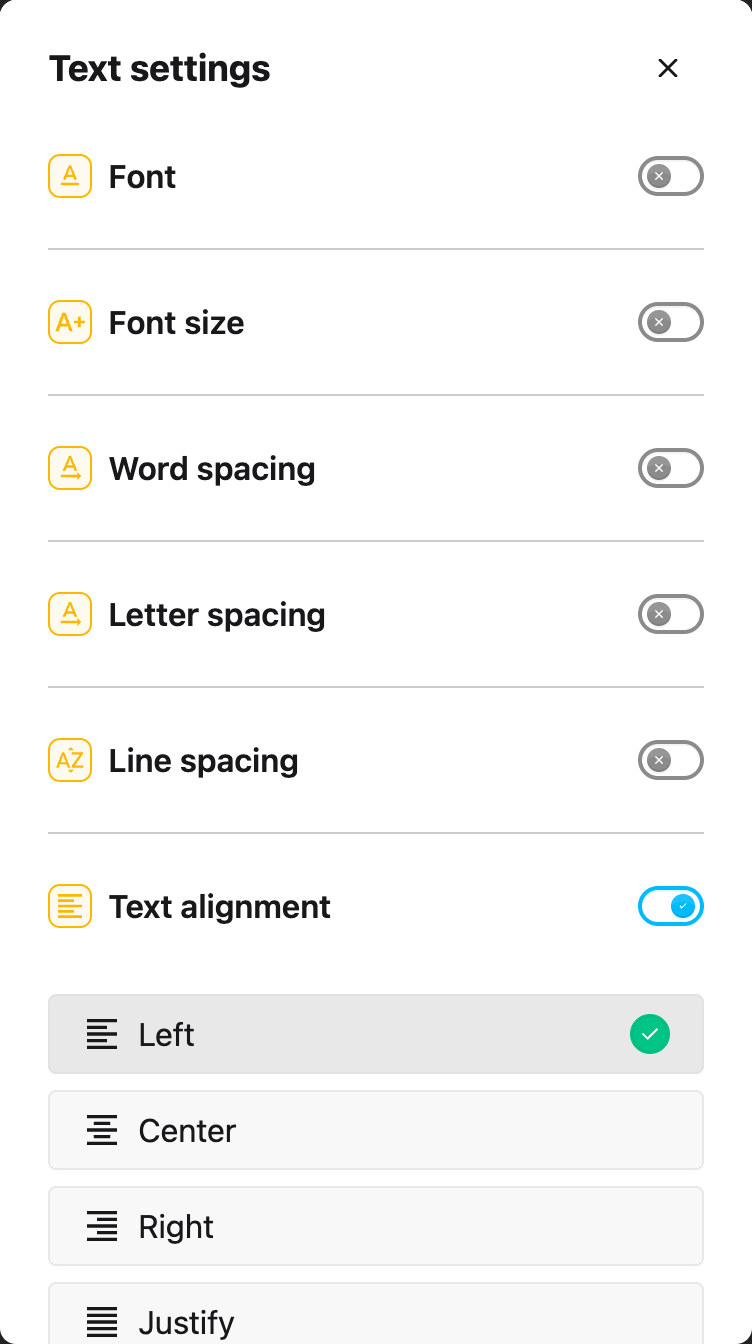
Scroll down until you see Text alignment. It is the last option in the panel.
Click the toggle switch next to it to turn it on. The toggle will turn blue when it is enabled.
 View full-size image (opens in a new tab)
Step 6: Choose Your Alignment
Once Text alignment is turned on, four alignment buttons will appear below the toggle.
Click on the alignment style you prefer. The text on the website will immediately change to match your selection.
Alignment Options
Helperbird offers four text alignment options:
Left - Text aligns to the left edge. This is the most common and often easiest to read because your eye always returns to the same starting point.
Center - Text is centered in the middle. This works well for headings or short text but can be harder to read for long paragraphs.
Right - Text aligns to the right edge. This is less common for reading but can be useful for certain layouts.
Justify - Text stretches to align with both the left and right edges. This creates clean margins but can cause uneven spacing between words that some people find distracting.
Tip: Most people find left-aligned text easiest to read because each line starts at the same place. If you have dyslexia, avoid justified text as the uneven word spacing can make reading harder.
Need Additional Help?
If you have any questions or run into any issues, please contact the Helperbird support team. You can reach us at Helperbird support. We are happy to help you get the most out of Helperbird.
Printed from the Helperbird Help Center · Updated September 22nd, 2026
Questions? We are happy to help — helperbird.com/support