How to Change Word Spacing on Any Website

Learn how to increase the space between words on any website using Helperbird. Word spacing makes text easier to read by giving each word more breathing room.

·

What is Word Spacing?

Word spacing adds extra space between each word in the text. Instead of words being close together, they are spread out more.

For example, "The quick brown fox" with increased word spacing would have larger gaps between each word, making it easier to see where one word ends and the next begins.


Who is This For?

This feature is helpful for:

  • People with dyslexia who find words blending together
  • Anyone who loses their place while reading
  • People with visual processing difficulties
  • Students reading dense paragraphs of text
  • Anyone who finds it hard to distinguish between words

Step 1: Open Helperbird

Click the Helperbird icon in your browser toolbar. It looks like a small owl and is usually in the top-right corner of your browser.

This will open the Helperbird menu.


Step 2: Open the All Features Section

Scroll down to the bottom of the Helperbird menu. You will see a section called All Features.

Click the arrow next to All Features to expand it and show all available features.


Step 3: Find Text Settings

Look through the list of features until you see Text settings.

It has a yellow icon with the letter "T" on it.


Step 4: Open Text Settings

Click on Text settings to open it.

A panel will appear with three tabs at the top: Text, Colors, and Border.

Make sure the Text tab is selected. This is where you will find the word spacing option.


Step 5: Turn on Word Spacing

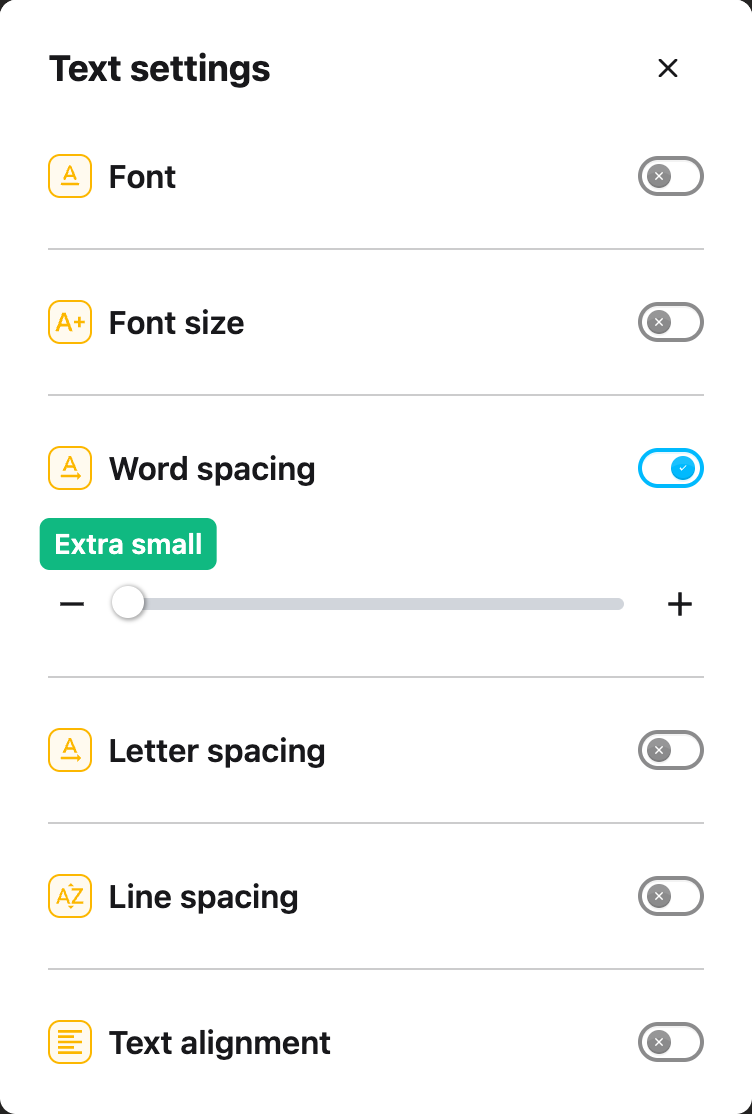
In the Text tab, scroll down until you see Word spacing.

Click the toggle switch next to it to turn it on. The toggle will turn green when it is enabled.


Step 6: Adjust the Spacing

Once Word spacing is turned on, a slider will appear below the toggle.

Drag the slider to the right to increase the space between words. Drag it to the left to decrease the spacing.

The changes will apply to the website immediately, so you can see the effect as you adjust the slider.

Tip: Word spacing works well when combined with letter spacing and line height. Try adjusting all three together to find your perfect reading setup.


Video Tutorial


Need Additional Help?

If you have any questions or run into any issues, please contact the Helperbird support team. You can reach us at Helperbird support. We are happy to help you get the most out of Helperbird.

What People Are Saying

Join over 1,000,000 people who use Helperbird every day.

omg i can actually read now

Spin F.

Spin F.

Helperbird user

Let me tell you, I didn't know how badly I needed this until I got it. It was much like when I got glasses, I had just assumed that was how everyone saw the world...then it wasn't. Thank you Helperbird for the efforts you put forth in this lovely extension for everyone to use. The fact that you can use so much on the free just goes to show that this is something to help aid people not just some money grab. However with the pricing it still couldn't be a money grab. Thank you all again for the efforts you put forth so others can enjoy the internet more fully.

Matthew Burns

Matthew Burns

Health care worker

Wow i am really glad someone had this idea. We need more helper tools like this.

Mohammad Karzai

Mohammad Karzai

Helperbird user

This extension has been an absolute lifesaver. I have that fantastic combo of ADHD and Dyslexia while trying to go through college. I have difficulty keeping letters in order, seeing the gaps between words, and with ADHD on top, I lose focus A LOT. The immersive reader has been my new best friend. It drowns out the rest of the content on the page, changes the font to something I can read, and highlights the word as it reads to me. My eyes are forced to keep going in the right direction. I can slow down and pay attention to what I'm reading. I don't even have to go back and read the same paragraph 5 times to understand it! The screen overlay has been outstanding for eye strain and being able to distinguish between words and spaces. The custom font and spacing for research articles have been an enormous advantage! I can actually read the research papers now and not have this daunting 2 column fine print page to squint over.All around, this has been the best purchase I've ever had. I use this every day, with every assignment. I don't even struggle with story-based questions anymore. The immersive reader helps me read, listen, and understand the question all at once. I am still exploring what I can use this with and how it can make my academic career, and I keep getting impressed with every new way I find to use it. Seriously, try it out. You won't regret it at all. Even if you don't have dyslexia or ADHD, just try it out. You might find that it helps you understand the content you're trying to learn even better!

Mason Hunter

Mason Hunter

Helperbird user

Simplemente increíble. Nunca he tenido una extensión con tantísimas opciones juntas. Como profesor, siempre la recomiendo a las familias de estudiantes con dificultades para mantener la atención, a la hora de leer, y otras necesidades específicas, aunque pienso que puede ser de uso para cualquiera. ¡Un 10!

Firefox user

Firefox user

Profesor / Teacher

This chrome extension is absolutely amazing. I'm a Primary school teacher and it helps children with a broad range of needs. It's so easy to set up. I love the way it syncs across devices so set up is seamless across all the children's computers. The customizable features are a game changer for allowing children to enjoy reading and accessing the web in our school. The best application I have ever seen for school children. Looking forward to trying the iPad application soon.

Luke Mccarthy

Luke Mccarthy

Teacher

Helperbird logo: Stylized owl with large yellow eyes and a beige face, against a green background.

Download Helperbird

Make browsing easier and more accessible with tools like Text to Speech, Immersive Reader, and more.