
How to Use Speech to Math (Math Mode) in Helperbird
Learn how to turn on Math Mode in Helperbird's voice typing and dictate equations out loud. Say 'x squared plus y squared' and get x² + y².
On this page
Math Mode lets you speak equations and have Helperbird write them as proper math notation. Say "x squared plus three x" and get x² + 3x, which suits anyone who finds typing maths slow or difficult.
What is Math Mode?
Math Mode is one of Helperbird's voice typing modes. With it on, your dictation is converted from spoken English into formatted mathematical notation as you talk. It covers a huge vocabulary: Greek letters, fractions, exponents, roots, integrals, derivatives, and more.
How to Turn On Math Mode
Step 1: Start voice typing
Open Voice typing in Helperbird. Leave the microphone stopped while you choose a mode.
 View full-size image (opens in a new tab)
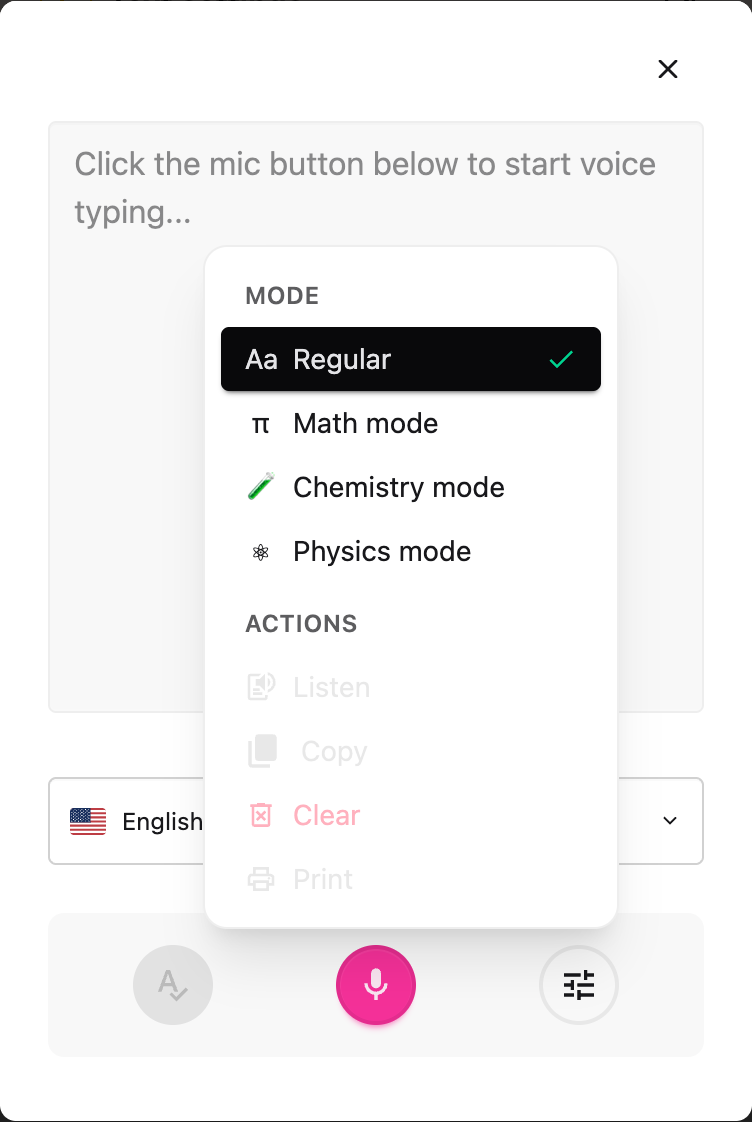
The screenshot shows Options open in the Voice typing panel. Choose the mode here before you start speaking.
Step 2: Open the options menu
Open the voice typing options menu beside the microphone.
Step 3: Choose Math under "Mode"
Pick Math. A check mark shows it's active, and a π badge appears on the microphone so you always know your dictation will be read as maths. Math Mode stays on until you change it, and the setting follows you between the popup, PDF reader, and Equation Editor.
Step 4: Speak
Press the microphone and dictate. Your words are converted as you go.
What You Can Say
| You say | You get |
|---|---|
| "x squared plus three x" | x² + 3x |
| "square root of 72" | √72 |
| "alpha equals pi r squared" | α = πr² |
| "the integral from zero to one of x squared" | ∫₀¹ x² |
| "a over b" | a/b |
| "x is greater than or equal to y" | x ≥ y |
Tip: you can drop the word "of", so "square root seventy two" works the same as "square root of 72".
Where It Works
Math Mode is available wherever Helperbird offers voice typing:
- The popup: dictate maths into any website.
- The PDF reader: dictate maths into your notes.
- The Equation Editor: dictate equations straight into the math field.
For chemistry and physics dictation, switch to Chemistry or Physics mode instead. See the related guide below. Voice typing is a Helperbird Pro feature.
Related Guides
- How to Use Chemistry and Physics Voice Typing in Helperbird
- How to Use the Maths Reader in Helperbird
- How to Use Word Prediction in Helperbird
Need Additional Help?
If you have any questions or run into any issues, please contact the Helperbird support team. You can reach us at Helperbird support. We are happy to help you get the most out of Helperbird.
Printed from the Helperbird Help Center · Updated September 22nd, 2026
Questions? We are happy to help — helperbird.com/support