
How to Highlight Links on Any Website
Learn how to make links more visible on any website using Helperbird. Highlight links with underlines and styling to make them easier to find.
Jump to the stepsOn this page
What is Highlight Links?
Many websites strip the underline from their links, which leaves color as the only thing marking them. That is hard to spot, and impossible if you cannot distinguish the color.
Highlight links puts a striped bar under every link instead, in grey, yellow, red and teal. It is deliberately not a plain underline: a four-color stripe is recognisable whatever your color vision.
Who is This For?
This feature is helpful for:
- People who have difficulty distinguishing links from regular text
- Anyone with low vision who needs clearer visual cues
- People who prefer consistent link styling across all websites
- Anyone who finds it frustrating when links are hard to identify
- People with cognitive differences who benefit from clear navigation
Step 1: Open Helperbird
Click the Helperbird icon in your browser toolbar. It looks like a small owl and is usually in the top-right corner of your browser.
This will open the Helperbird menu.
Step 2: Go to the All Features Section
Scroll down to the bottom of the Helperbird menu. You will see a section called All Features.
Click the arrow next to All Features to expand it and show all available features.
Step 3: Find Display
Look through the list of features until you see Display. Highlight links lives inside this panel, alongside the other display settings.
Step 4: Open Display
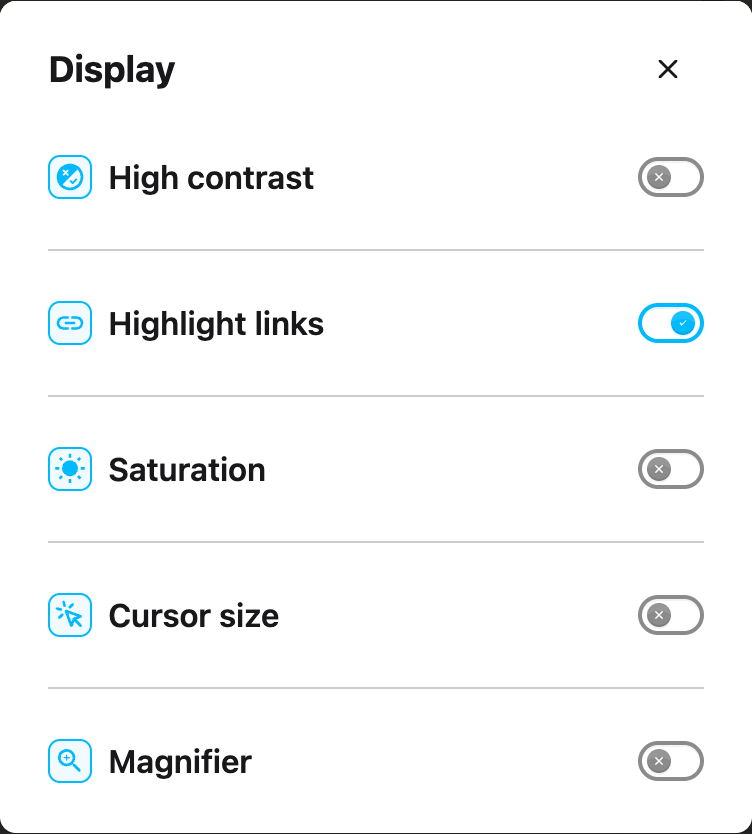
Click Open on the Display row. The panel holds High contrast, Highlight links, Saturation, Cursor size and Magnifier.
Step 5: Turn on Highlight Links
Click the toggle switch next to Highlight links to turn it on. The toggle will turn blue when it is enabled.
All links on the page will immediately become more visible with clear underline styling.
Tip: Combine this feature with the Link Color feature to make links stand out even more with a custom color.
What It Looks Like
Highlight links has no settings. It is a single switch in the Display panel, alongside High contrast, Saturation, Cursor size and Magnifier.
 View full-size image (opens in a new tab)
The style it applies is fixed: a 2 pixel striped bar under each link, in grey, yellow, red and teal. Any underline the site had is replaced by it.
That matters for anyone who cannot rely on color alone to spot a link, which is why there is nothing to configure. If you want to change how links look more generally, use link color instead.
Video Tutorial
Need Additional Help?
If you have any questions or run into any issues, please contact the Helperbird support team. You can reach us at Helperbird support. We are happy to help you get the most out of Helperbird.
Printed from the Helperbird Help Center · Updated September 22nd, 2026
Questions? We are happy to help — helperbird.com/support