
How to Change Line Height on Any Website

Learn how to adjust line height on any website for better reading comfort and accessibility Support for all learners and educators. Learn how to adjust line height on any website using Helperbird. Line height adds space between lines of text, making it easier to read without losing your place.

·

What is Line Height?

Line height is the vertical space between each line of text. When you increase line height, the lines spread apart more, giving text more breathing room.

For example, a paragraph with increased line height will have larger gaps between each row of text, making it easier to follow from one line to the next without accidentally skipping or rereading lines.


Who is This For?

This feature is helpful for:

  • People with dyslexia who lose their place between lines
  • Anyone who finds tightly packed text difficult to read
  • People with visual stress or eye strain
  • Students reading long articles or documents
  • Anyone who wants text to feel less crowded

Step 1: Open Helperbird

Click the Helperbird icon in your browser toolbar. It looks like a small owl and is usually in the top-right corner of your browser.

This will open the Helperbird menu.


Step 2: Open the All Features Section

Scroll down to the bottom of the Helperbird menu. You will see a section called All Features.

Click the arrow next to All Features to expand it and show all available features.


Step 3: Find Text Settings

Look through the list of features until you see Text settings.

It has a yellow icon with the letter "T" on it.


Step 4: Open Text Settings

Click the arrow button next to Text settings to open it.

A panel will appear with all of the text options in one scrollable list. This is where you will find the line height option.


Step 5: Turn on Line Height

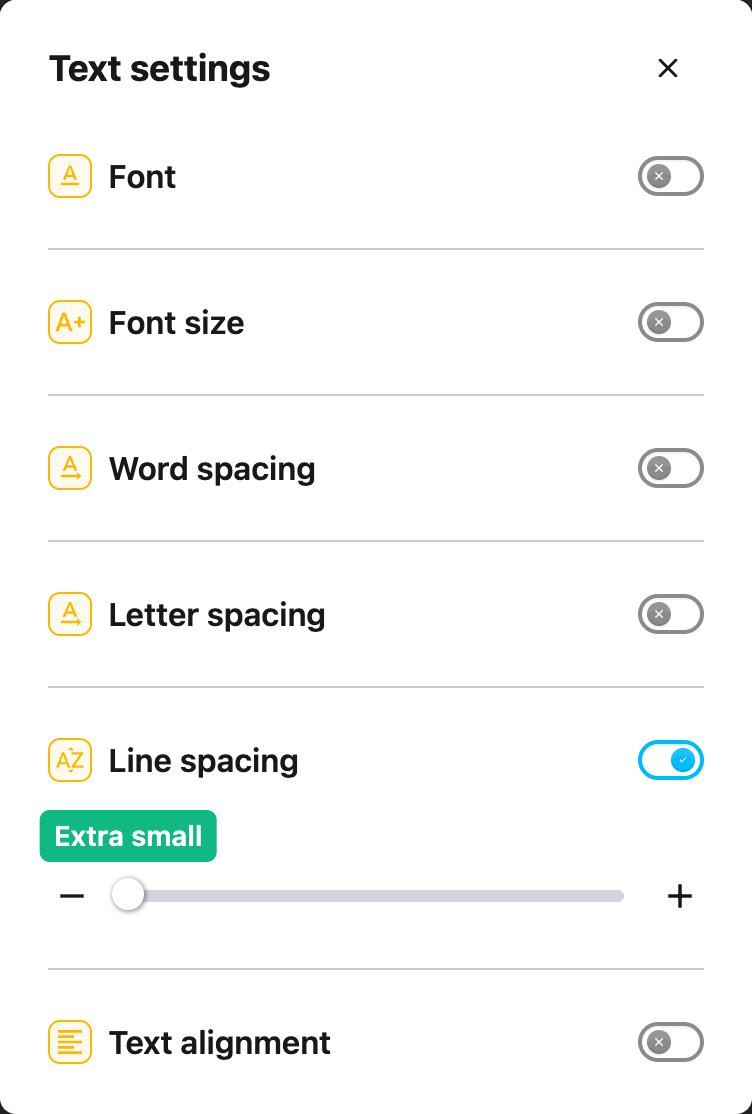
In the Text settings panel, scroll down until you see Line height.

Click the toggle switch next to it to turn it on. The toggle will turn blue when it is enabled.

Step 6: Adjust the Height

Once Line height is turned on, a slider will appear below the toggle.

Drag the slider to the right to increase the space between lines. Drag it to the left to decrease the spacing.

The changes will apply to the website immediately, so you can see the effect as you adjust the slider.

Tip: Line height works great together with letter spacing and word spacing. If text still feels cramped after adjusting line height, try increasing the other spacing options too.


Video Tutorial


Need Additional Help?

If you have any questions or run into any issues, please contact the Helperbird support team. You can reach us at Helperbird support. We are happy to help you get the most out of Helperbird.

What People Are Saying

Join over 1,000,000 people who use Helperbird every day.

I have ADHD and yesterday Helperbird and the text-to-speech function (available in free version) turned a 28-page reading assignment from a two-day task to roughly two hours, maybe three at the absolute most. It helped tremendously! And I loved that the text-to-speech has such a fluid voice compared to a lot of others I've used! Honestly, the fact that this was created by someone who knows the struggles is something I love, because then it has neurodivergency in mind. I've tried too many things in the past that were created by neurotypical folk trying to be helpful to us and I do appreciate it, but it doesn't work as well because our brains work different. Highly recommend!

Addison Brown

Addison Brown

Helperbird user

It's been a great help. Im very happy I made the switch.

Gregory Arnold

Gregory Arnold

Helperbird user

Simplemente increíble. Nunca he tenido una extensión con tantísimas opciones juntas. Como profesor, siempre la recomiendo a las familias de estudiantes con dificultades para mantener la atención, a la hora de leer, y otras necesidades específicas, aunque pienso que puede ser de uso para cualquiera. ¡Un 10!

Firefox user

Firefox user

Profesor / Teacher

This extension has been an absolute lifesaver. I have that fantastic combo of ADHD and Dyslexia while trying to go through college. I have difficulty keeping letters in order, seeing the gaps between words, and with ADHD on top, I lose focus A LOT. The immersive reader has been my new best friend. It drowns out the rest of the content on the page, changes the font to something I can read, and highlights the word as it reads to me. My eyes are forced to keep going in the right direction. I can slow down and pay attention to what I'm reading. I don't even have to go back and read the same paragraph 5 times to understand it! The screen overlay has been outstanding for eye strain and being able to distinguish between words and spaces. The custom font and spacing for research articles have been an enormous advantage! I can actually read the research papers now and not have this daunting 2 column fine print page to squint over.All around, this has been the best purchase I've ever had. I use this every day, with every assignment. I don't even struggle with story-based questions anymore. The immersive reader helps me read, listen, and understand the question all at once. I am still exploring what I can use this with and how it can make my academic career, and I keep getting impressed with every new way I find to use it. Seriously, try it out. You won't regret it at all. Even if you don't have dyslexia or ADHD, just try it out. You might find that it helps you understand the content you're trying to learn even better!

Mason Hunter

Mason Hunter

Helperbird user

I love and use Helperbird for Chrome and I think it's a great tool!

Walter Washburn

Walter Washburn

Helperbird user

This works and it makes everything so much easier to read! Thank you so much and i will keep posted if i do run into any issues!

Jay O'Bell

Jay O'Bell

Helperbird user

Helperbird logo: Stylized owl with large yellow eyes and a beige face, against a green background.

Download Helperbird

Make browsing easier and more accessible with tools like Text to Speech, Immersive Reader, and more.