
How to Read a Page Aloud from the Floating Toolbar
Learn how to use the Play and Stop buttons on Helperbird's floating toolbar to have a web page, or just the part you selected, read out loud.
Jump to the stepsOn this page
What This Does
The Play button reads the page to you. Select some text first and it reads only that; select nothing and it reads the whole page.
Who is This For?
This is helpful for:
- Anyone who takes more in by listening than by reading
- Students working through a long article
- People with dyslexia or tired eyes
- Anyone who wants to follow along while doing something else
Step 1: Open the Toolbar
If the toolbar is closed, it sits in the bottom-left corner as a single round button. Click it to open the row of tools.
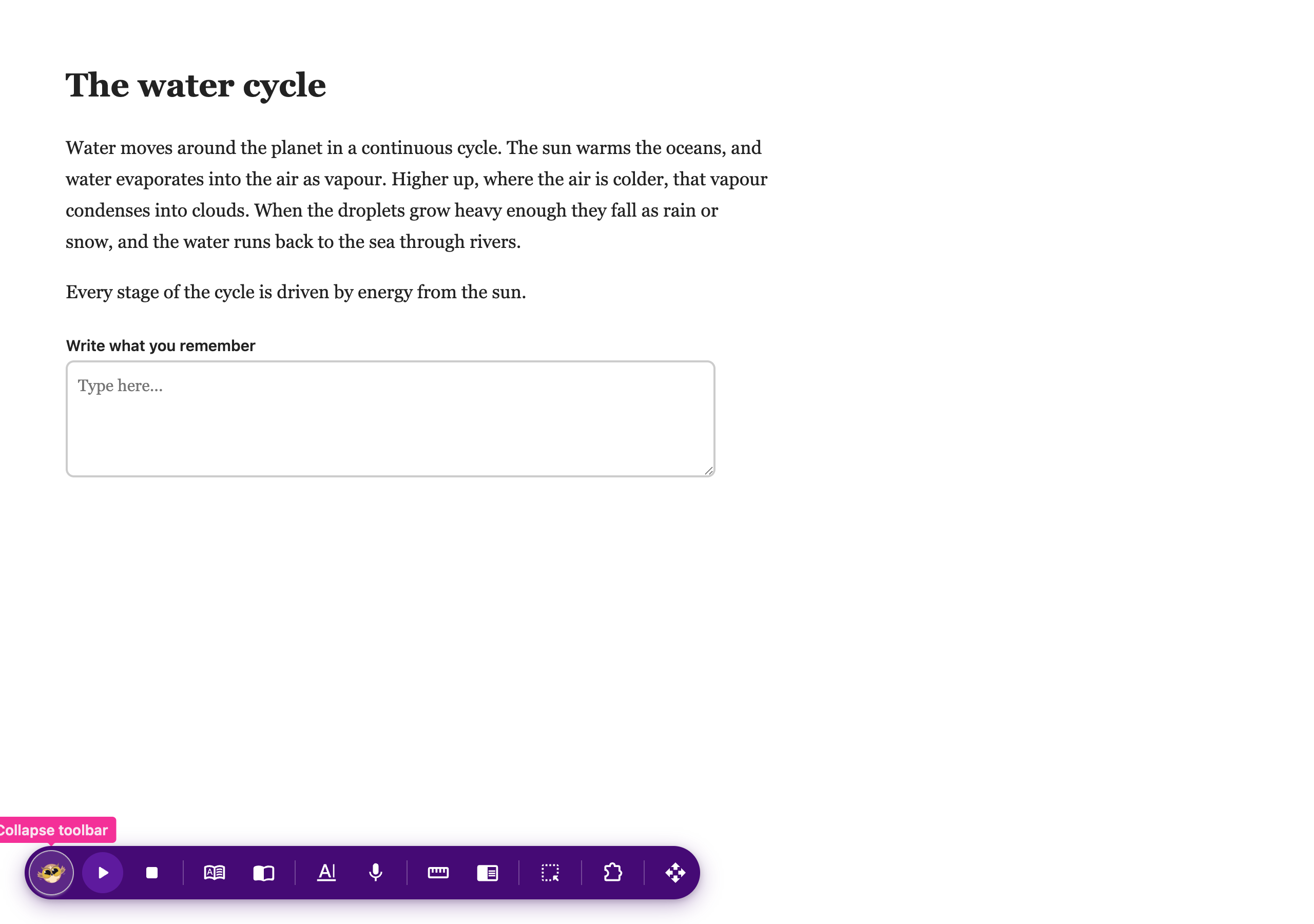 View full-size image (opens in a new tab)
If you do not see it at all, it needs turning on first. See how to turn on the floating toolbar.
Step 2: Use It
To read one part, drag across the text you want, then press Play.
To read the whole page, press Play without selecting anything.
Press Stop, the square next to it, to finish early or cancel a reading that is still loading. Closing or collapsing the toolbar also stops speech.
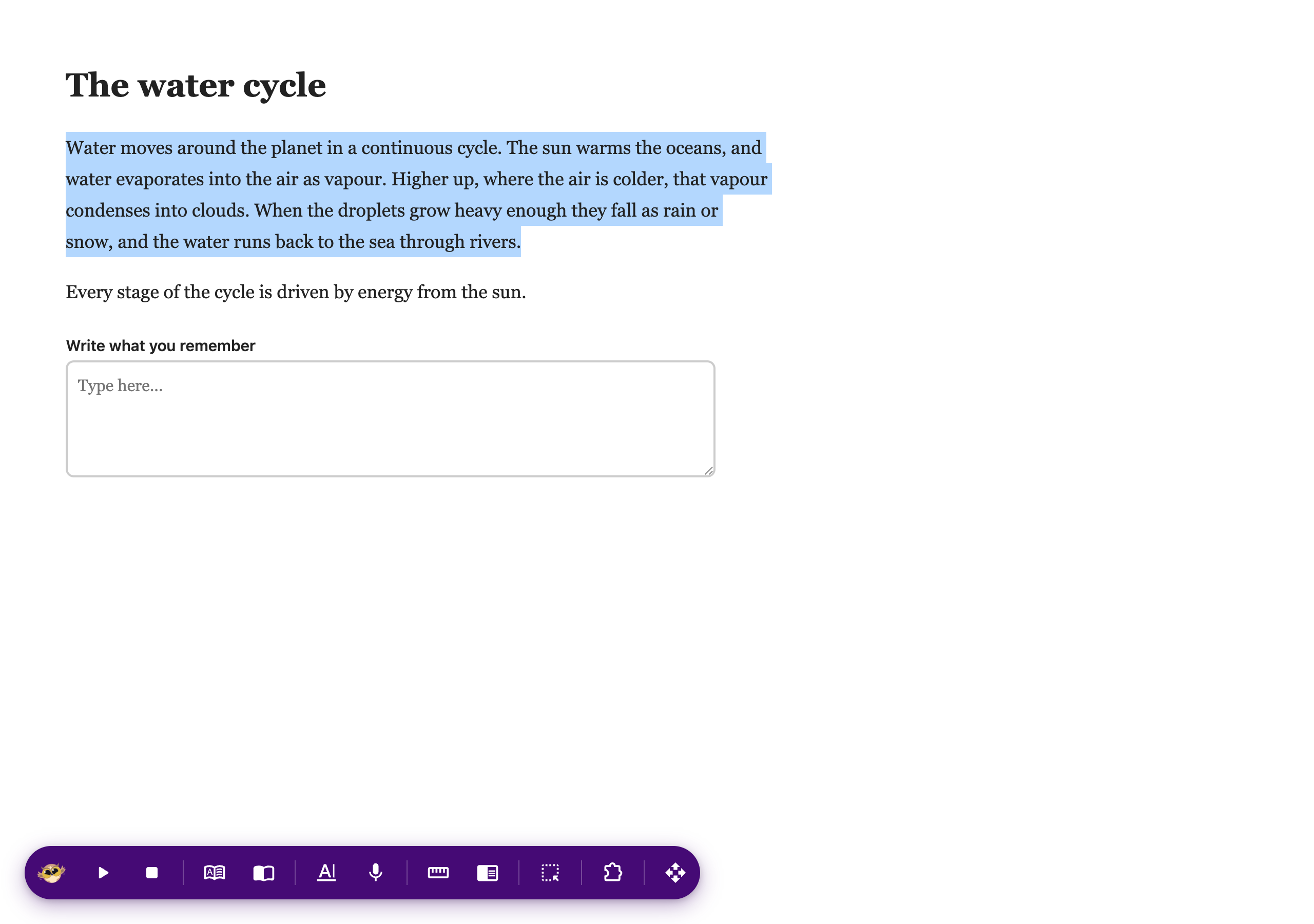 View full-size image (opens in a new tab)
It uses the voice and speed from your text to speech settings, so change them there and this follows.
In Google Docs, highlight a visible passage before pressing Play. Your selection stays available when you move to the toolbar. If it cannot be read, select it again; Helperbird does not read the whole document instead.
For selected text inside a lesson, try the optional Embedded reading beta.
Need Additional Help?
If you have any questions or run into any issues, please contact the Helperbird support team. You can reach us at Helperbird support. We are happy to help you get the most out of Helperbird.
Printed from the Helperbird Help Center · Updated September 22nd, 2026
Questions? We are happy to help — helperbird.com/support