
How to Login to Helperbird
Learn how to log in to Helperbird. Access your account and settings for accessibility tools Support accessibility for everyone.
On this page
There are two ways to log in to Helperbird and unlock your Pro features. You can use your email or a subscription key. Pick whichever method works best for you.
Not sure which one to pick, or want to use Helperbird on more than one browser? See Email Login vs Subscription Key for a side-by-side comparison.
Log in with Email
Works on Chrome and Edge Make sure browser sync is enabled before you start.
Step 1: Open Helperbird Settings
Click the Helperbird icon in the top right corner of your browser. Scroll down to the bottom of the menu and click Settings. This will open a new tab with your Helperbird settings.
Step 2: Click Login and Grant Permission
In the settings tab, find the account card and click Login. You'll be asked to allow Helperbird to read your email address.
Click to grant permission so Helperbird can check if you have an active Pro subscription.
 View full-size image (opens in a new tab)
Step 3: Access Your Pro Features
Helperbird will check your email for an active subscription.
If you have one, you'll instantly get access to all Pro features. If you don't have a subscription or run into issues, you can use a subscription key instead.
Tip: Email login is the easiest method if you're on Chrome or Edge. Your login will sync across all your devices automatically!
Log in with Subscription Key
Works on Chrome, Edge, Firefox, iPhone, and iPad Learn more about subscription keys.
Step 1: Open Helperbird Settings
Click the Helperbird icon in the top right corner of your browser. Scroll down to the bottom and click Settings. A new tab will open with all your Helperbird settings.
Step 2: Find the Subscription Section
In the settings tab, scroll down until you see the subscription section.
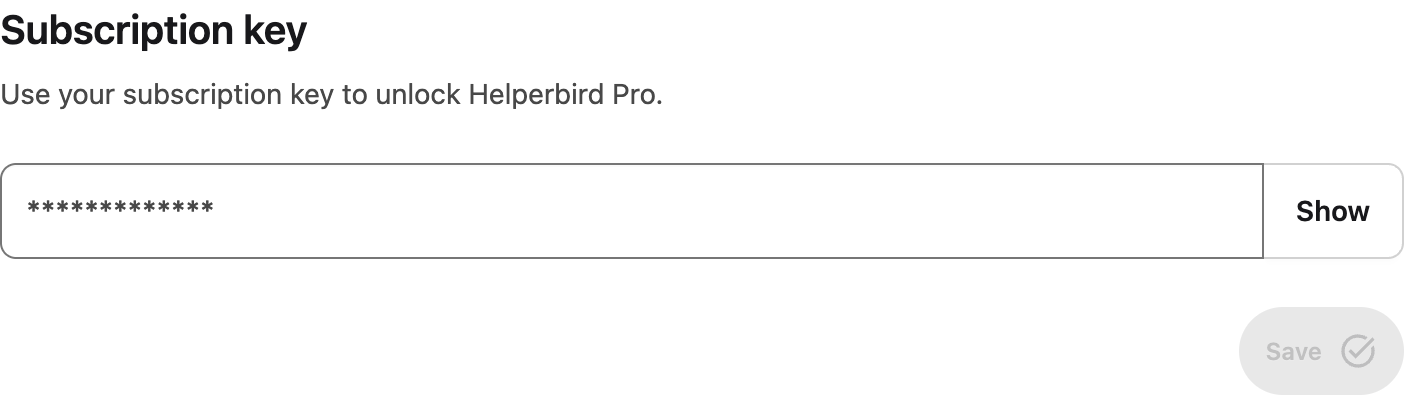
This is where you'll enter your subscription key.
Step 3: Enter Your Key and Save
Type or paste your subscription key into the field and click Save. If the key is valid and you have an active subscription, you'll see confetti and a confirmation message.
You now have access to all Pro features!
Tip: Keep your subscription key somewhere safe. You'll need it if you switch browsers or devices, or if you use Firefox, iPhone, or iPad!
 View full-size image (opens in a new tab)
Video Tutorial
Need Additional Help?
Having trouble logging in? Reach out to our Helperbird support team and we'll get you sorted out right away!
Printed from the Helperbird Help Center · Updated September 22nd, 2026
Questions? We are happy to help — helperbird.com/support