
How to Import Your Helperbird Settings
Learn how to import a previously exported Helperbird settings file to restore your preferences on a new device or after a reset.
Jump to the stepsOn this page
Why Import Your Settings?
If you previously exported your Helperbird settings, you can import that file to restore all your preferences in one step. This is useful when you are setting up Helperbird on a new computer or browser, restoring your settings after a reset, or applying a shared configuration, for example a teacher distributing a recommended setup to students.
You need a settings file that was exported from Helperbird using the Export Settings feature.
Step 1: Open Helperbird
Click the Helperbird icon in your browser toolbar. It looks like a small owl and is usually in the top-right corner of your browser.
This will open the Helperbird menu.
 View full-size image (opens in a new tab)
Step 2: Open the Settings Page
Click the gear icon in the top-left corner of the Helperbird menu. This will open the Settings page.
Step 3: Click Import Next to Settings
Scroll down to the Import section on the Settings page. You will see a Settings row with an Import button next to it.
Click the Import button.
Step 4: Select Your .helperbird File
A file picker will open. It only accepts .helperbird files, the same format that Helperbird exports. Navigate to where you saved your exported settings file and select it.
Step 5: Confirm the Import
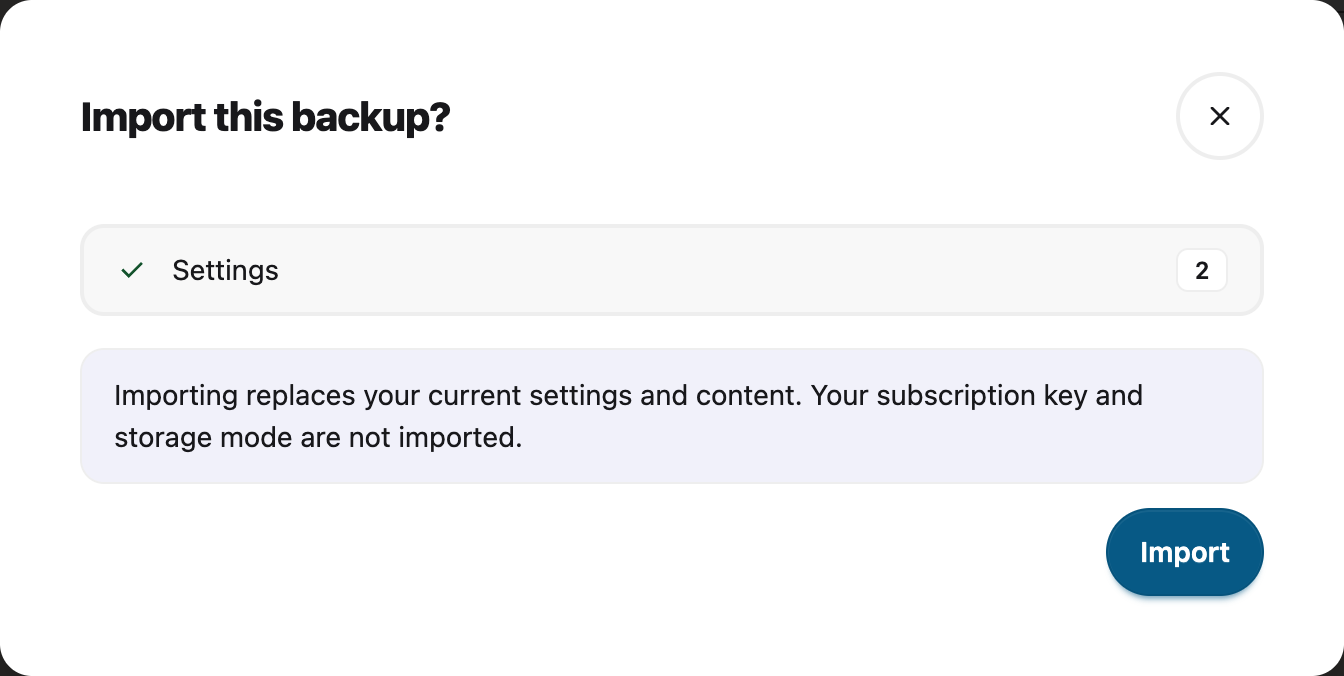
Review the backup summary, then choose Import to apply it. If the import fails, the preview stays open so you can try again.
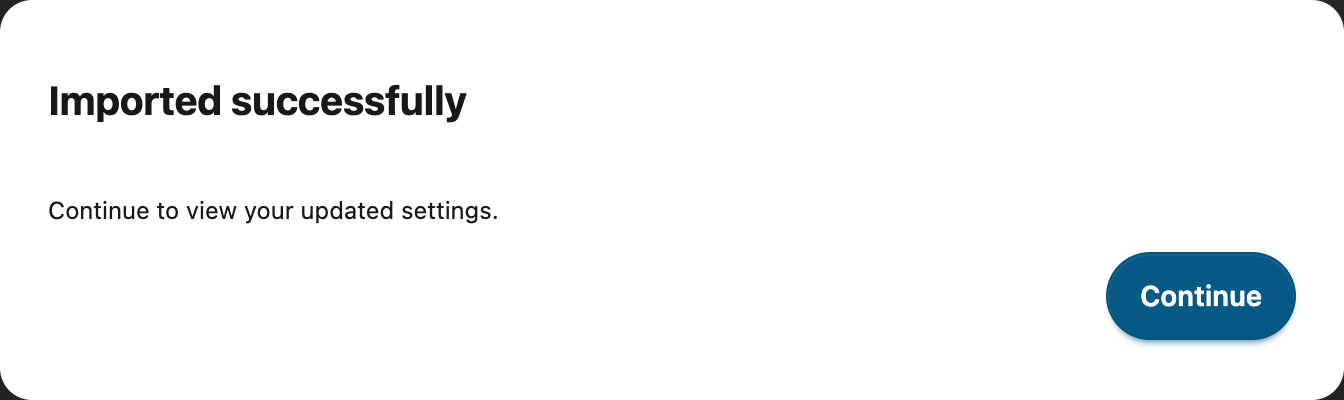
When you see Imported successfully, select Continue to reload Settings with the imported values. The result stays open until you are ready.
Important: Importing settings will replace your current settings with the ones from the file. If you want to keep your current settings as a backup, export them first before importing.
Tip: This feature works great for schools and organizations. An administrator or teacher can configure Helperbird with the ideal settings, export the file, and then distribute it to students or staff to import on their own devices.
 View full-size image (opens in a new tab)
 View full-size image (opens in a new tab)
Need Additional Help?
If you have any questions or run into any issues, please contact the Helperbird support team. You can reach us at Helperbird support. We are happy to help you get the most out of Helperbird.
Printed from the Helperbird Help Center · Updated September 22nd, 2026
Questions? We are happy to help — helperbird.com/support