How to Change the Highlight Color on Any Website

Learn how to use Helperbird's change the highlight color. Complete guide for improving web accessibility and reading support.

·

What is Highlight Color?

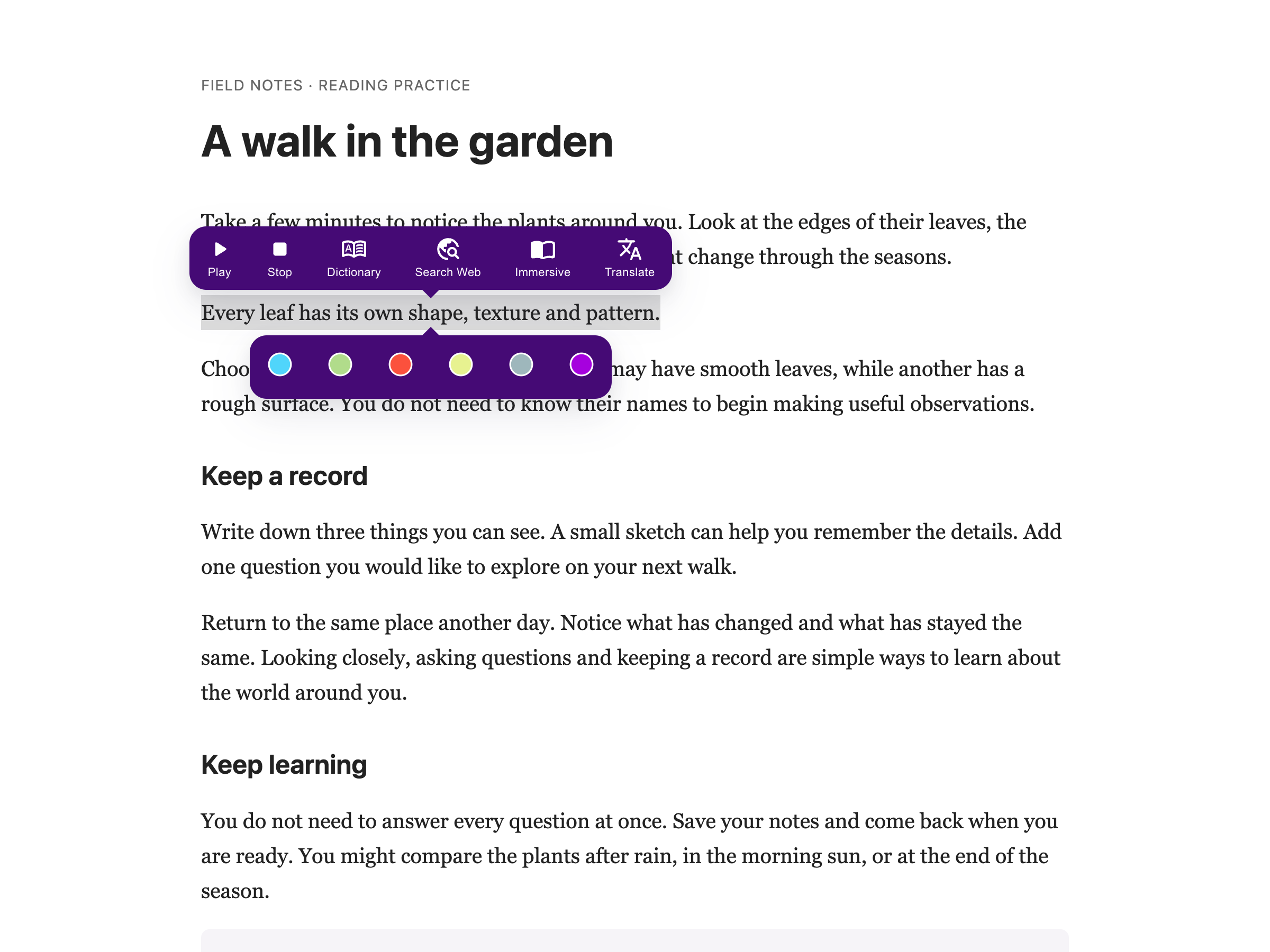
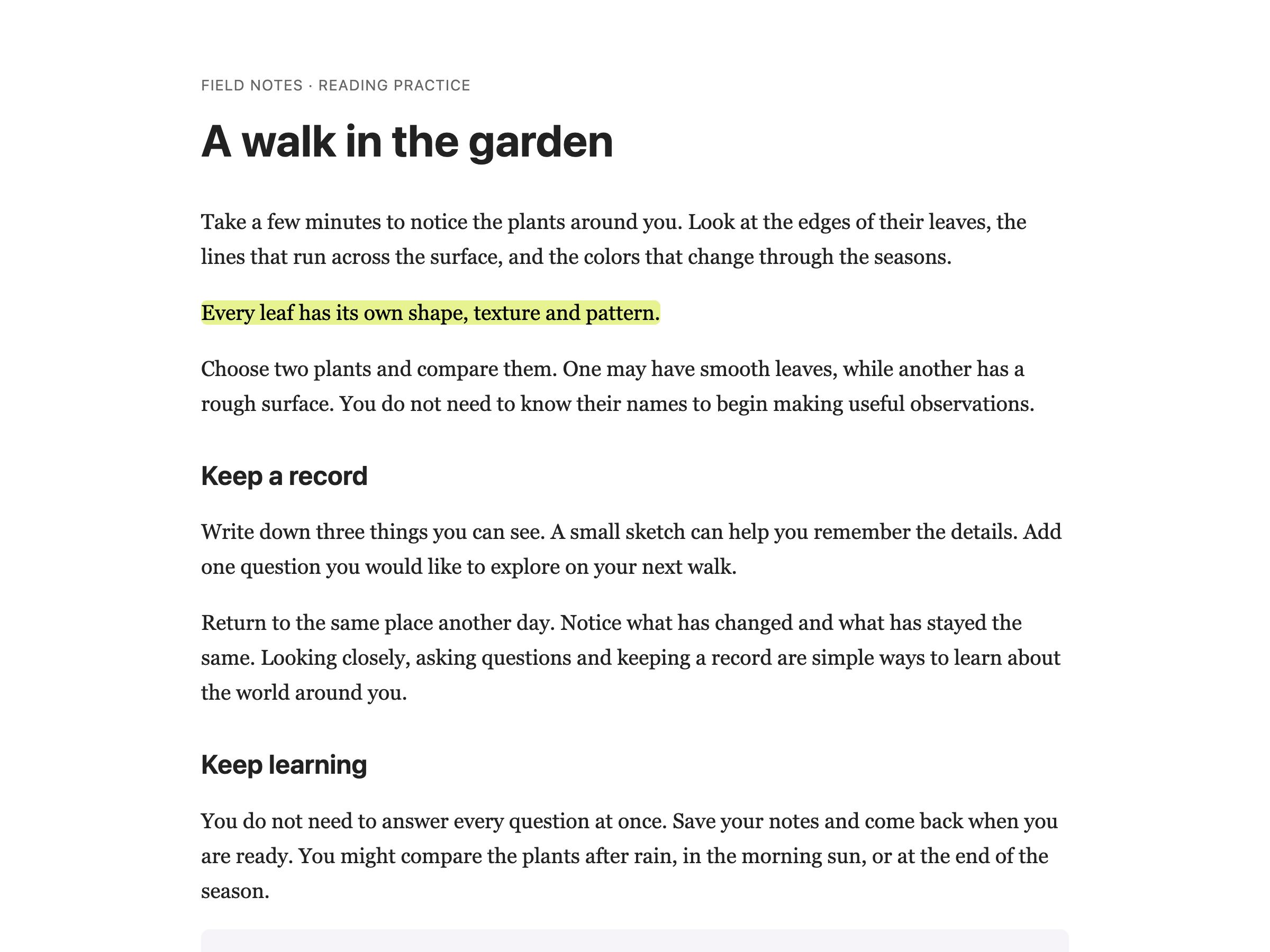
The highlight color feature changes the color that appears when you select text on a website. Normally when you click and drag to select text, it shows with a blue highlight. With Helperbird, you can change this to any color you prefer.

This is the selection highlight you see while reading, not the permanent highlighter tool for annotating.


Who is This For?

This feature is helpful for:

  • People who find the default blue selection color hard to see
  • Anyone who wants better contrast when selecting text
  • People with visual preferences for certain colors
  • Students who select text frequently while reading
  • Anyone who wants to personalize their browsing experience

Step 1: Open Helperbird

Click the Helperbird icon in your browser toolbar. It looks like a small owl and is usually in the top-right corner of your browser.

This will open the Helperbird menu.


Step 2: Open the All Features Section

Scroll down to the bottom of the Helperbird menu. You will see a section called All Features.

Click the arrow next to All Features to expand it and show all available features.


Step 3: Find Text Settings

Look through the list of features until you see Text settings.

It has a yellow icon with the letter "T" on it.


Step 4: Open Text Settings

Click on Text settings to open it.

A panel will appear with three tabs at the top: Text, Colors, and Border.


Step 5: Go to the Colors Tab

Click on the Colors tab to see all the color options.

This is where you will find the highlight color option along with other color settings.


Step 6: Turn on Highlight Color

In the Colors tab, look for Highlight.

Click the toggle switch next to it to turn it on. The toggle will turn green when it is enabled.


Step 7: Choose Your Color

Once Highlight is turned on, a color palette will appear below the toggle.

Click on any color to select it. Now when you select text on any website, it will be highlighted in your chosen color.

If you do not see a color you like, you can click the color picker icon to choose any custom color.

Tip: Choose a color that contrasts well with the text and background colors you are using. A bright yellow or light green often works well for most backgrounds.


Video Tutorial


Need Additional Help?

If you have any questions or run into any issues, please contact the Helperbird support team. You can reach us at Helperbird support. We are happy to help you get the most out of Helperbird.

What People Are Saying

Join over 1,000,000 people who use Helperbird every day.

My son has dyslexia and has been struggling with parts of distant learning over the last year. We recently discovered this software and he is loving everything about it, especially with the ease of following directions and completing his assignments! We have used several other tools but this has everything a dyslexia person needs all in one bundle! The upgrade is definitely worth it to make our daily struggles, on the computer, run much smoother. I also greatly appreciate customer support (helpdesk). They went above and beyond to make sure we were all set up on the computer for my son to most successful.

Melissa Motz

Melissa Motz

Teacher

Where to start! Firstly, I'd like to thank Robert (the developer) for his generosity - the app is extremely cheap as apps go. It is very apparent that this app is a labour of love - Robert is constantly working on it and improving things, adding new features, etc. As someone with ADHD and ASD, I have always had to piece-meal together the features I need to help me study effectively - half a dozen different apps / extensions, and even then they don't quite meet my expectations. Helperbird, however, offers SO MUCH more, and all in one place - you can finetune your experience to your heart's desire. The features I particularly love are summarise, simplify, sticky notes, highlighting, and the amazing immersive reader with TTS. I can't sing Helperbird's praises enough. Thank you, Robert, for such a thoughtful - and genuinely helpful - app. You are empowering the neurodivergent everywhere.

Firefox user

Firefox user

Helperbird user

I love and use Helperbird for Chrome and I think it's a great tool!

Walter Washburn

Walter Washburn

Helperbird user

Amazing in eliminating embarrassing mistakes. Am one happy kid here!

Brian Borland

Brian Borland

Helperbird user

It's a great tool! Really simple to use and works as described.

shivashree vysali

shivashree vysali

Helperbird user

I am very happy with this application has been very helpful for my studying I recommend this application for the people that have concentration problems like me!

Nuria E Rivera R

Nuria E Rivera R

Helperbird user

Helperbird logo: Stylized owl with large yellow eyes and a beige face, against a green background.

Download Helperbird

Make browsing easier and more accessible with tools like Text to Speech, Immersive Reader, and more.