
How to Look Up a Word from the Floating Toolbar
Learn how to select a word on any page and look up its meaning straight from Helperbird's floating toolbar, without leaving what you are reading.
Jump to the stepsOn this page
What This Does
Select a word you do not know and press Dictionary. Helperbird looks it up for you.
Who is This For?
This is helpful for:
- Students meeting new vocabulary while reading
- Anyone reading something written above their usual level
- People learning English
- Anyone who would otherwise open a new tab and lose their place
Step 1: Open the Toolbar
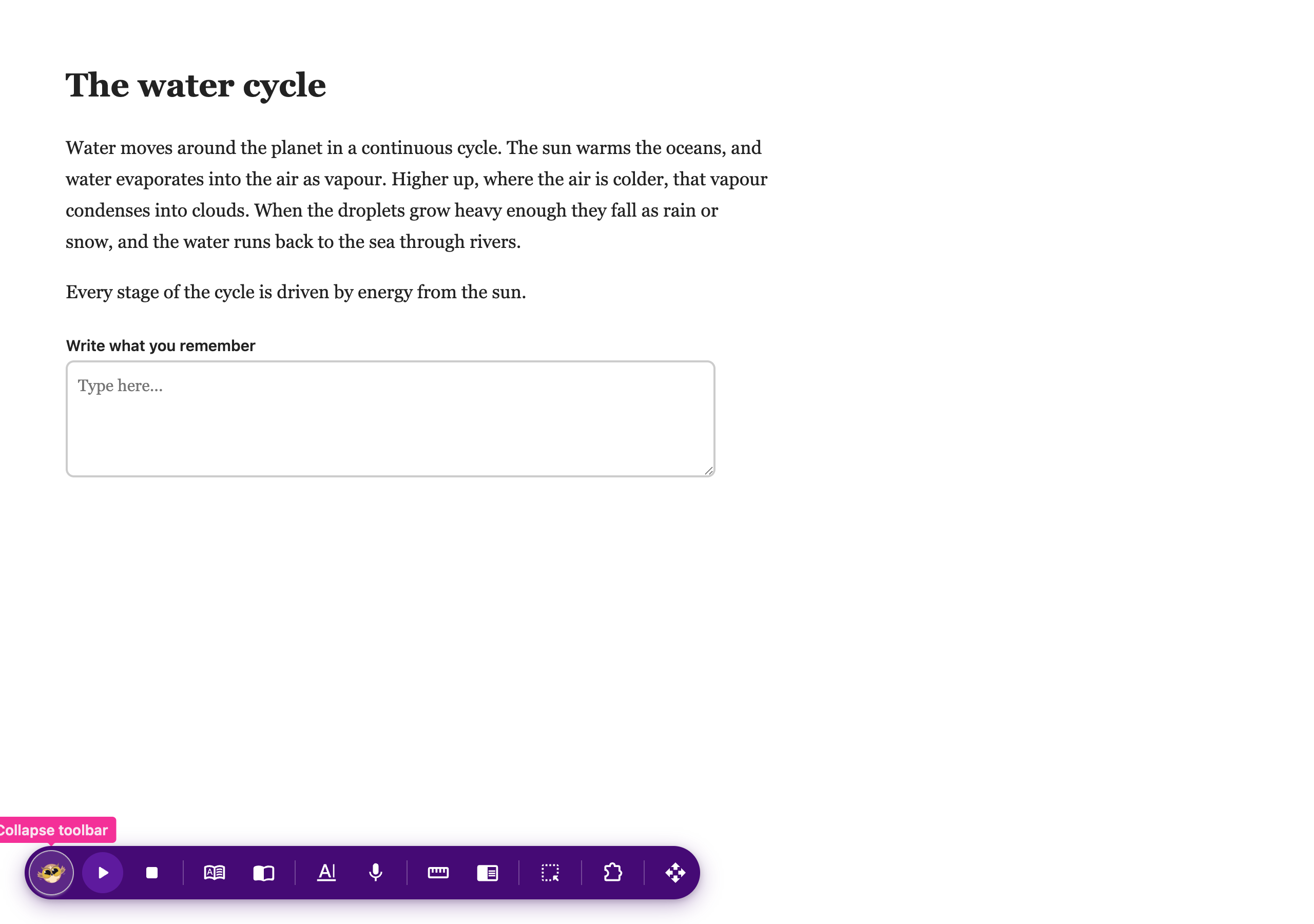
If the toolbar is closed, it sits in the bottom-left corner as a single round button. Click it to open the row of tools.
 View full-size image (opens in a new tab)
If you do not see it at all, it needs turning on first. See how to turn on the floating toolbar.
Step 2: Use It
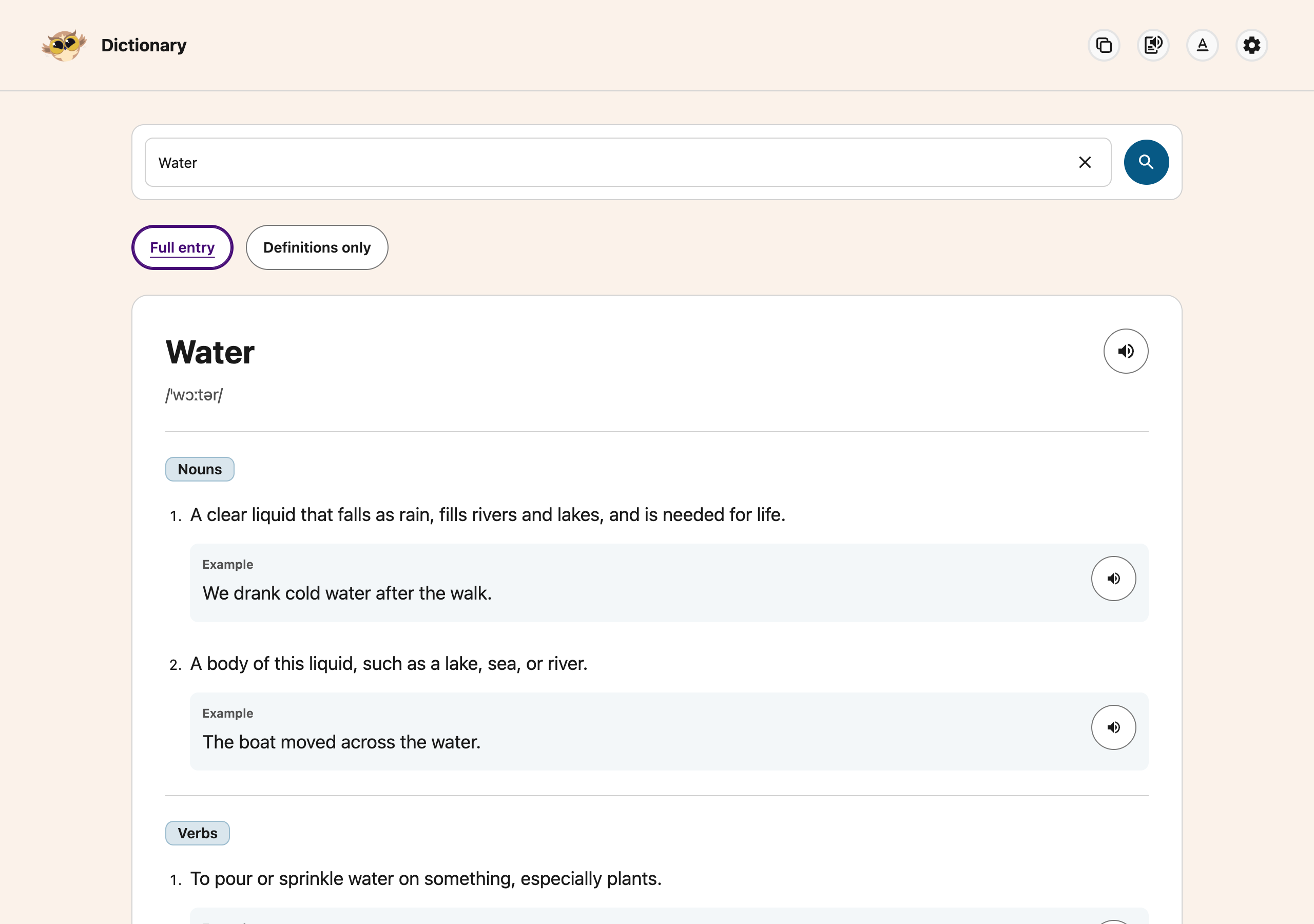
Drag across one word, then press Dictionary on the toolbar. The Dictionary opens in a new tab with the word already looked up.
 View full-size image (opens in a new tab)
For definitions, examples and similar words in a fuller view, see the Helperbird Dictionary.
Need Additional Help?
If you have any questions or run into any issues, please contact the Helperbird support team. You can reach us at Helperbird support. We are happy to help you get the most out of Helperbird.
Printed from the Helperbird Help Center · Updated September 22nd, 2026
Questions? We are happy to help — helperbird.com/support