
How to Listen to Your Notepad Document
Listen to your NotePad document, pause when you need to and choose a comfortable reading speed.
Jump to the stepsOn this page
What This Does
NotePad's Text to Speech player reads your document aloud. Use it to check how a sentence sounds or follow your writing while you listen.
The player sits above your writing. Opening or hiding it does not change the document. NotePad writing, document actions and this speech player are free. Notes/Highlights and Reading List remain Pro features.
Who is This For?
Use it to review a draft or listen while you read.
Step 1: Open Your Document
Open NotePad and write a few sentences. To continue earlier work, choose Open document in the top toolbar and open a saved document.
Make sure the document contains text. The player cannot read an empty document as a passage.
Step 2: Show the Player
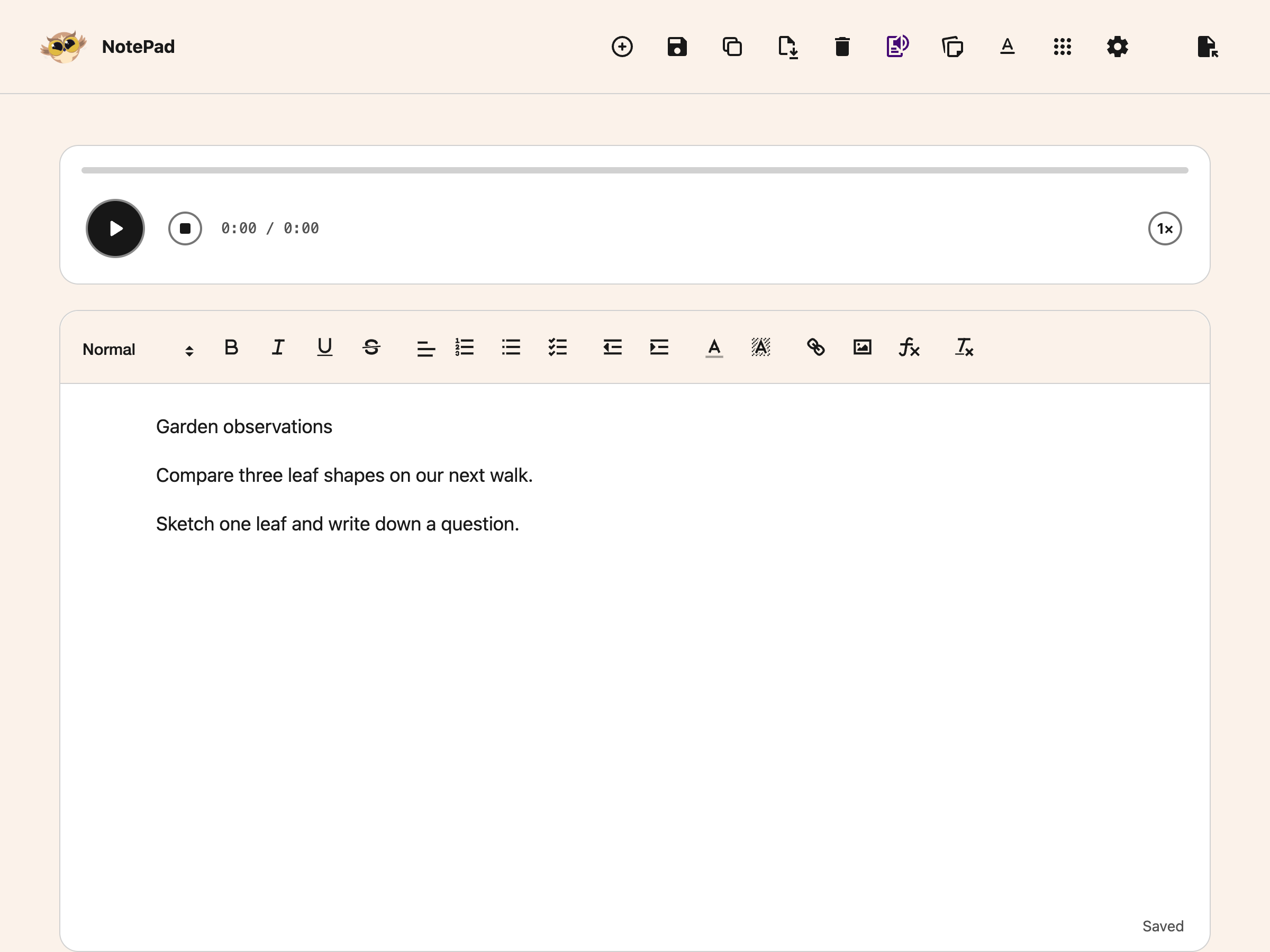
Choose Text to Speech in the top toolbar. The player opens above the document. It waits for you to choose Play; it does not start speaking as soon as you open it.
Step 3: Play, Pause or Stop
Choose Play to read the document. The button becomes Pause while speech is playing. Pause keeps your place so you can continue listening. Stop ends the reading.
The time display helps you follow progress. Total reading time is an estimate, so it may differ from the voice's actual duration.
Choose the speed button, such as 1×, to cycle through the available speeds. Try a slower pace for unfamiliar material. The voice settings guide explains how to choose a voice in Helperbird.
Step 4: Continue Writing
Stop playback before making a large edit or opening another document. This helps you keep track of which version you are hearing. Choose Text to Speech again when you want to hide the player.
To change the font, spacing, width or theme, see adjust your reading view. These choices do not change the document's saved formatting.
Troubleshooting
If you cannot hear speech, check your device volume and selected voice. Confirm that the document contains readable text. If the voice is unavailable, choose another voice and try again.
The player does not create an audio download. To keep a document copy, use Download.
Need Additional Help?
Return to the NotePad guide or contact Helperbird support.
Printed from the Helperbird Help Center · Updated September 26th, 2026
Questions? We are happy to help — helperbird.com/support