How to Use Word Spotlight on Any Website

Learn how to use word spotlight. Highlight individual words while reading for better focus Support accessibility for everyone. Learn how to use Helperbird's Word Spotlight feature to highlight text as you read. Focus on content more easily with a spotlight effect that follows your cursor.

·

What is Word Spotlight?

Word Spotlight creates a spotlight effect that highlights the area around your cursor as you move it across a webpage. This helps you focus on specific text by making the surrounding content less prominent. It works like shining a flashlight on what you are reading.


Who is This For?

This feature is helpful for:

  • People who have difficulty tracking text while reading
  • Anyone with attention difficulties like ADHD
  • People who get distracted by surrounding content
  • Readers who lose their place on busy webpages
  • Anyone who wants to focus on one section at a time

Step 1: Open Helperbird

Click the Helperbird icon in your browser toolbar. It looks like a small owl and is usually in the top-right corner of your browser.

This will open the Helperbird menu.


Step 2: Go to the All Features Section

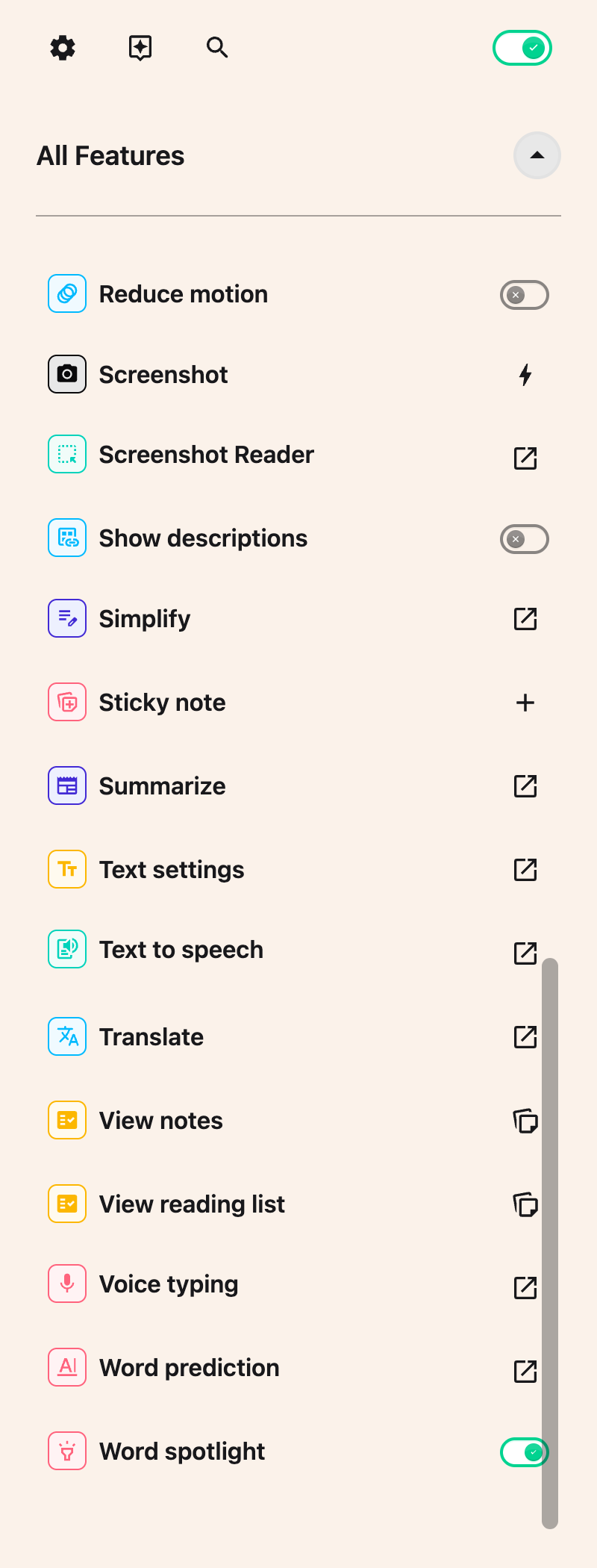
Scroll down to the bottom of the Helperbird menu. You will see a section called All Features.

Click the arrow next to All Features to expand it and show all available features.


Step 3: Find Word Spotlight

Look through the list of features until you see Word Spotlight.


Step 4: Turn on Word Spotlight

Click the toggle switch next to Word Spotlight to turn it on. The toggle will turn green when it is enabled.


Step 5: Read with Focus

Move your mouse cursor across the webpage.

A spotlight effect will follow your cursor, highlighting the text near it while dimming the rest of the page. This helps you focus on the content you are currently reading.

Move your cursor down the page as you read to keep the spotlight on the text you are looking at.

Tip: Word Spotlight works great with articles and long text content. Combine it with a dyslexia-friendly font or increased text size for an even better reading experience.


Video Tutorial


Need Additional Help?

If you have any questions or run into any issues, please contact the Helperbird support team. You can reach us at Helperbird support. We are happy to help you get the most out of Helperbird.

What People Are Saying

Join over 1,000,000 people who use Helperbird every day.

Helperbird is one of the most helpful tools I've ever used. It has so many great features that not many other apps or software have. The free version can be installed and stay forever on your browser. Other companies don't always give you access for free or give access for free forever. When you do get access to the Pro version or other paid plans, you expand your opportunity to read and stay focused better. One of the other great things about Helperbird is their support service. They have a video for every single feature that you can use. They are simple and helpful videos that make the learning process a lot easier. In addition, they have great live chat support. They are super nice and helpful. They always encourage people to give suggestions on how to improve Helperbird. Why is this important? It shows they really care about people with disabilities or people in general.

Alex R

Alex R

Helperbird user

Helperbird offers a wide range of customization in one easy to navigate spot. Computers and dyslexia don't always mesh, the features like ruler makes reading text heavy web pages easier. Tech support is amazingly responsive should you need any help.

Fiona Wren

Fiona Wren

Helperbird user

Amazing Extensions in chrome. I Installed in my parents computer, because my dad have a poor vision, due to bad eye surgery. this extension really helps to have able to manipulate the font and font size for more comfortable use instead of chrome zoom feature. Because the chrome zoom feature is its overly zoom will cause the page looking super weird.

Kai Tam

Kai Tam

Helperbird user

I have to admit, I have tried several other similar products which were awful. Helperbird is truly amazing! The font changes, colours, overlays, notes, text to speech and I love the 50 natural languages! 100% worth updating.

Ciarán Hyland

Ciarán Hyland

Helperbird user

I am getting such great support from Robert. I enjoy working with him. He answers my questions very quickly. Thanks so much for your great support and a great product.

Terry Martin

Terry Martin

Assistive technology specialist

this extension is amazing and has helped improve my productivity robert has also been a very nice person to deal with when I have issues the live chat feature is amazing and quick for a response it's a really great Chrome extension that helps a lot way worth the money I pay per month and is also just great to support great people making accessibility tools

Jack Salem

Jack Salem

Helperbird user

Helperbird logo: Stylized owl with large yellow eyes and a beige face, against a green background.

Download Helperbird

Make browsing easier and more accessible with tools like Text to Speech, Immersive Reader, and more.