
How to Share and Export PDFs with Helperbird
Send a PDF you marked up in Helperbird to a teacher, a class or a colleague. Download it first, then share the file through Drive, Classroom, email or your LMS.
Jump to the stepsOn this page
How Sharing a PDF Works
You share a marked-up PDF the same way you share any file.
There is no share or send button in the PDF Reader. You download the file to your computer first, then pass it on with whatever you already use.
Some tools in the Tools menu send text or a screenshot from your PDF to OpenAI or Azure. See where Helperbird stores your data.
Step 1: Download the PDF With Your Changes
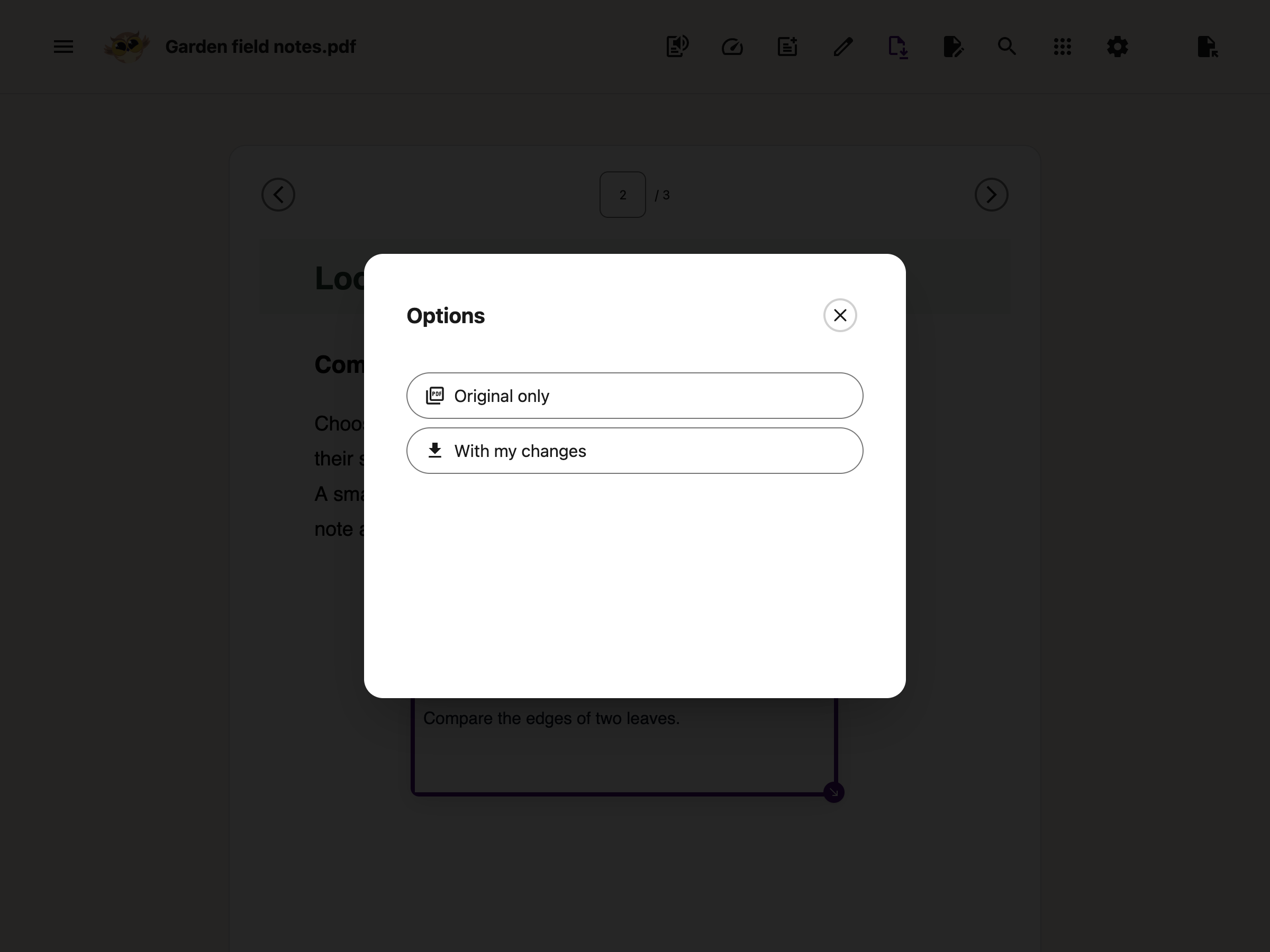
Click Download in the toolbar. In the Options window, choose With my changes. You get a standard PDF that opens in any viewer.
Read what survives a download before you hand in work that will be graded.
 View full-size image (opens in a new tab)
Step 2: Send the File
The downloaded PDF behaves like any other file on your computer. You can:
- Upload it to Google Drive and share it with a teacher or classmate
- Attach it to an assignment in Google Classroom
- Attach it to an email
- Upload it to OneDrive or hand it in through Microsoft Teams
- Upload it to Canvas, Schoology, Brightspace or whichever platform your school uses
- Print it, with your text boxes and drawings on the page
What the Person Opening It Sees
- An ordinary PDF, with no need for Helperbird at their end
- The original document, unchanged, with your work drawn on top
- Text and shapes that are now part of the page, so they cannot be clicked, moved or replied to
What Sharing Does Not Do
- Highlights are not in the file you send, and neither is anything left in the Notepad.
- Your text boxes and drawings become part of the page. Changing an answer later means marking up the original again and downloading a new copy.
How Students Hand Work Back
Your teacher shares a PDF worksheet through Google Classroom.
You open it in the Helperbird PDF Reader and fill it in with text boxes and drawing tools.
Then you download it with your changes and hand the file back the same way it came.
Related Guides
- How to Annotate and Export a PDF with Helperbird
- How to Use the PDF Reader in Helperbird
- How to Use Drawing Tools on PDFs
- How to Add Text Boxes to PDFs
- How to Use Helperbird for Reading Long PDFs
- How to Open PDFs with Helperbird in Google Drive, Classroom or Gmail
Need Additional Help?
If you have any questions or run into any issues, please contact the Helperbird support team. You can reach us at Helperbird support. We are happy to help you get the most out of Helperbird.
Printed from the Helperbird Help Center · Updated September 25th, 2026
Questions? We are happy to help — helperbird.com/support