
How to Remove a Page from Your Helperbird Reading List
Learn how to remove a page from your Helperbird Reading list once you have finished with it, using the Remove button beside each saved page.
Jump to the stepsOn this page
What This Does
Takes a page off your Reading list. The page itself is not affected in any way, only your saved link to it.
Who is This For?
This is helpful for:
- Anyone tidying up after finishing an article
- Students clearing out sources from a finished assignment
- Anyone whose list has become too long to be useful
Step 1: Find the Page
Open your Reading list and find the row you want to remove. If the list is long, search for it first.
Step 2: Find the Remove Button
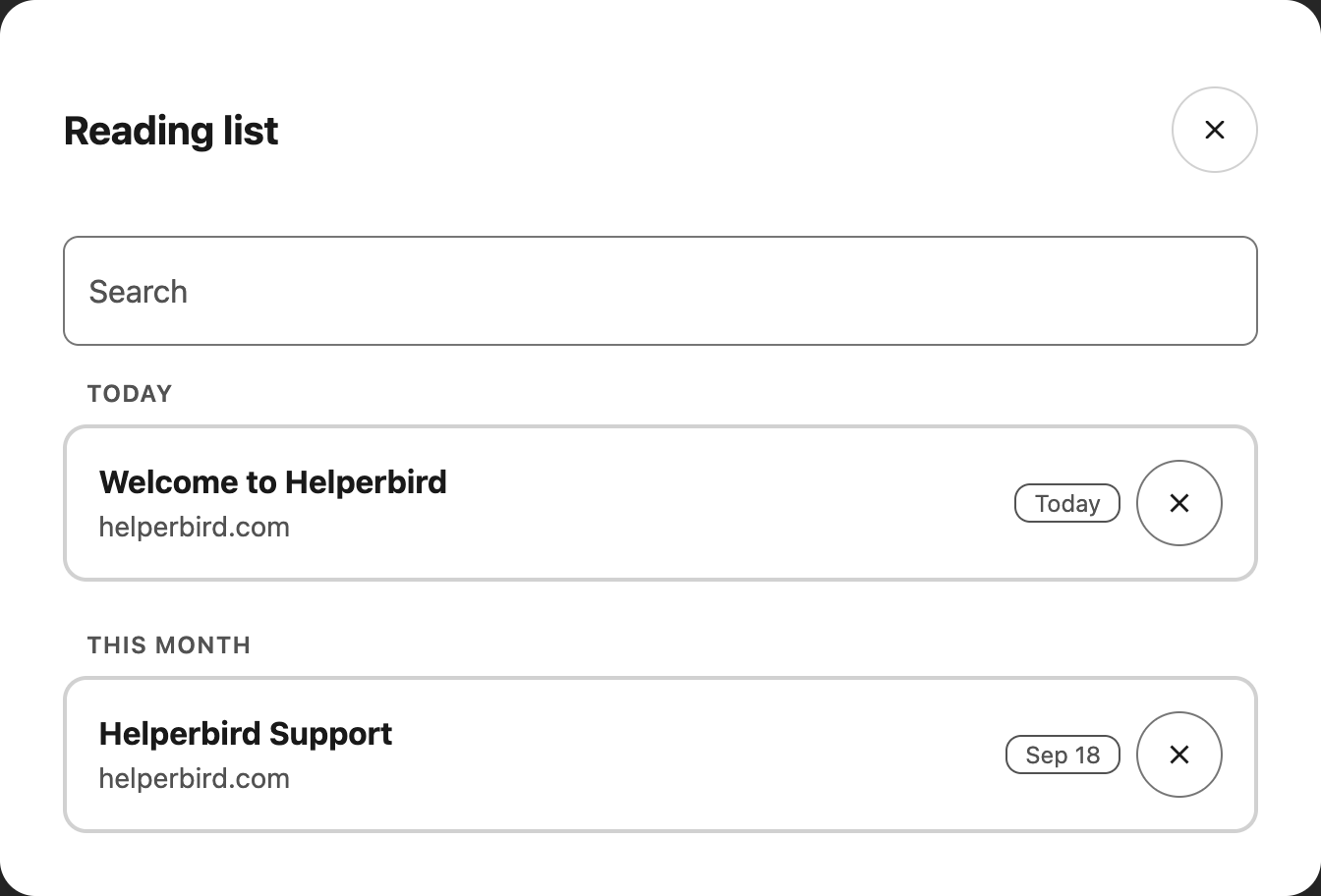
Each saved page has a Remove button, shown as a cross on the right. With a keyboard, press Tab until that button has focus.
 View full-size image (opens in a new tab)
Step 3: Click Remove
Click the button and the page is taken off your list.
Clicking anywhere else on the row opens the page instead, so aim for the small round button on the right.
There is no undo and no confirmation. If you remove something by mistake, go back to the page and save it again.
Need Additional Help?
If you have any questions or run into any issues, please contact the Helperbird support team. You can reach us at Helperbird support. We are happy to help you get the most out of Helperbird.
Printed from the Helperbird Help Center · Updated September 22nd, 2026
Questions? We are happy to help — helperbird.com/support