Use Immersive Reader on Any Website
You might know Immersive Reader from Microsoft Word or Edge. It's that clean reading view that strips away everything except the text and lets you customize how it looks.
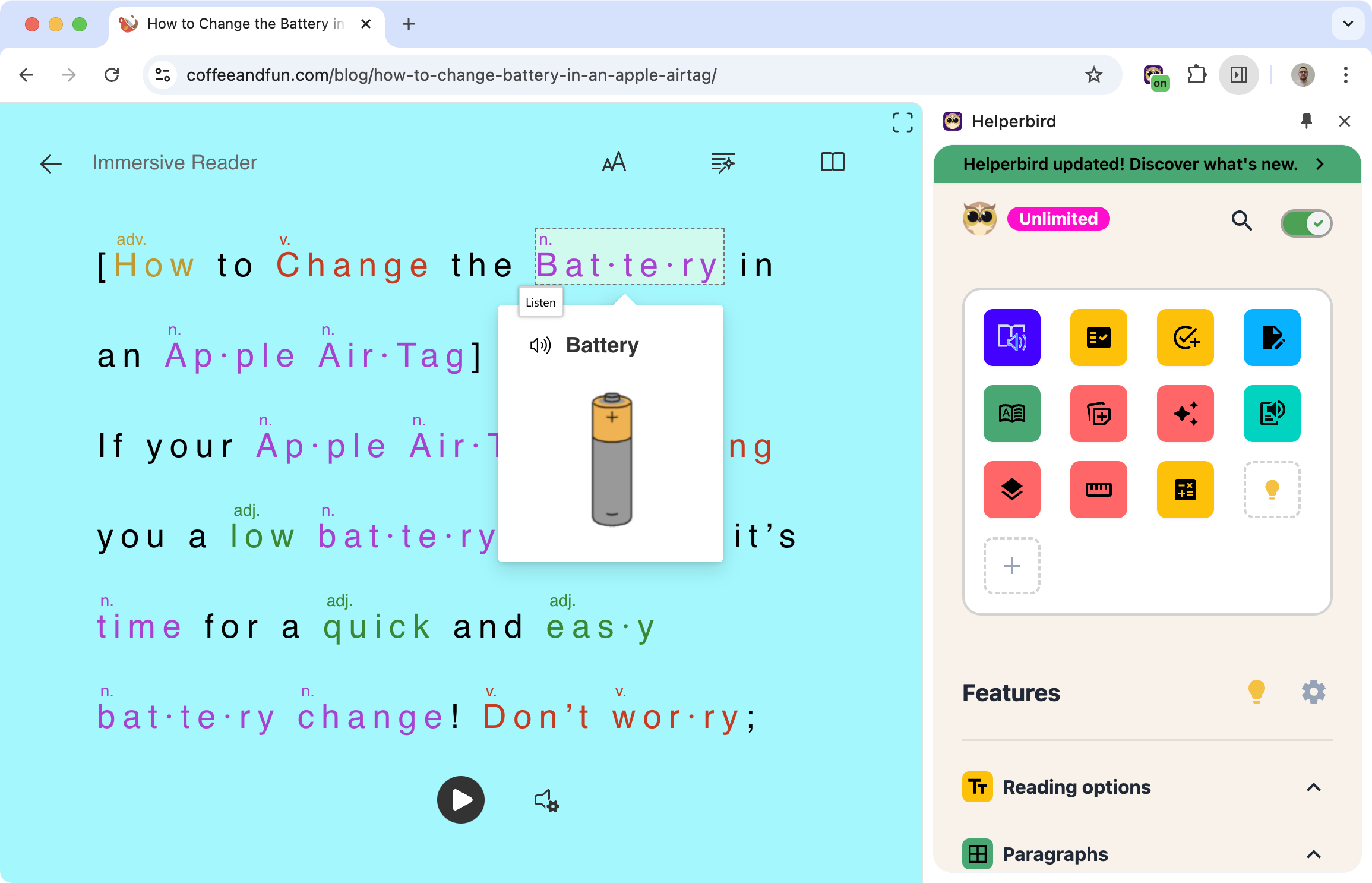
With Helperbird, you can use Immersive Reader on any website or PDF. Just highlight the text you want to read and open it in Immersive Reader. Works on Chrome, Firefox, Edge, and Safari.
Learn how to use Immersive Reader
Related features
- Text to Speech - Listen to any text on the web read aloud with support for 109 languages.
- Dyslexia Fonts - Switch to OpenDyslexic or Lexend fonts designed for easier reading.
- Reading Mode - Remove ads and distractions from any webpage.
What It Does
Removes distractions: Ads, sidebars, pop-ups - all gone. You see just the text in a clean layout.
Reads aloud: Click play and listen to the text. Each word highlights as it's spoken so you can follow along.
Shows grammar: Turn on parts of speech to see nouns, verbs, and adjectives highlighted in different colors. Helpful for learning grammar or understanding sentence structure.
Picture dictionary: Some words show a small picture to help explain the meaning.
Syllable breakdown: Splits words into syllables to help with pronunciation and decoding.
Line focus: Shows one, three, or five lines at a time to help you stay focused on what you're reading.
Why People Like It
Immersive Reader isn't just for people who struggle with reading. It's for anyone who wants to:
Focus on content without getting distracted by everything else on the page.
Listen instead of read when their eyes need a break.
Understand grammar by seeing how sentences are structured.
Read in a different language and hear how words are pronounced.
Customize text with the font size, spacing, and colors that work best for them.
Works on Articles, PDFs, and More
Once you highlight text, you can open it in Immersive Reader no matter where it came from:
- News articles
- Wikipedia pages
- Online textbooks
- PDF documents
- Google Docs
- Emails
- Really, any text you can select
Who Uses This
Students reading textbooks or research papers who need to focus.
People with dyslexia who benefit from the clean layout and read-aloud feature.
English language learners using the grammar tools and pronunciation.
Anyone tired of cluttered web pages who just wants to read the article.
Is This Free?
Yes. Immersive Reader is free in Helperbird. You can use it on up to 1,200 characters at a time without paying anything.