Type Text Straight Onto Any PDF
Plenty of PDFs aren't fillable - worksheets, forms, handouts that arrive as flat documents with nowhere to type. Printing them out just to write by hand is a hassle.
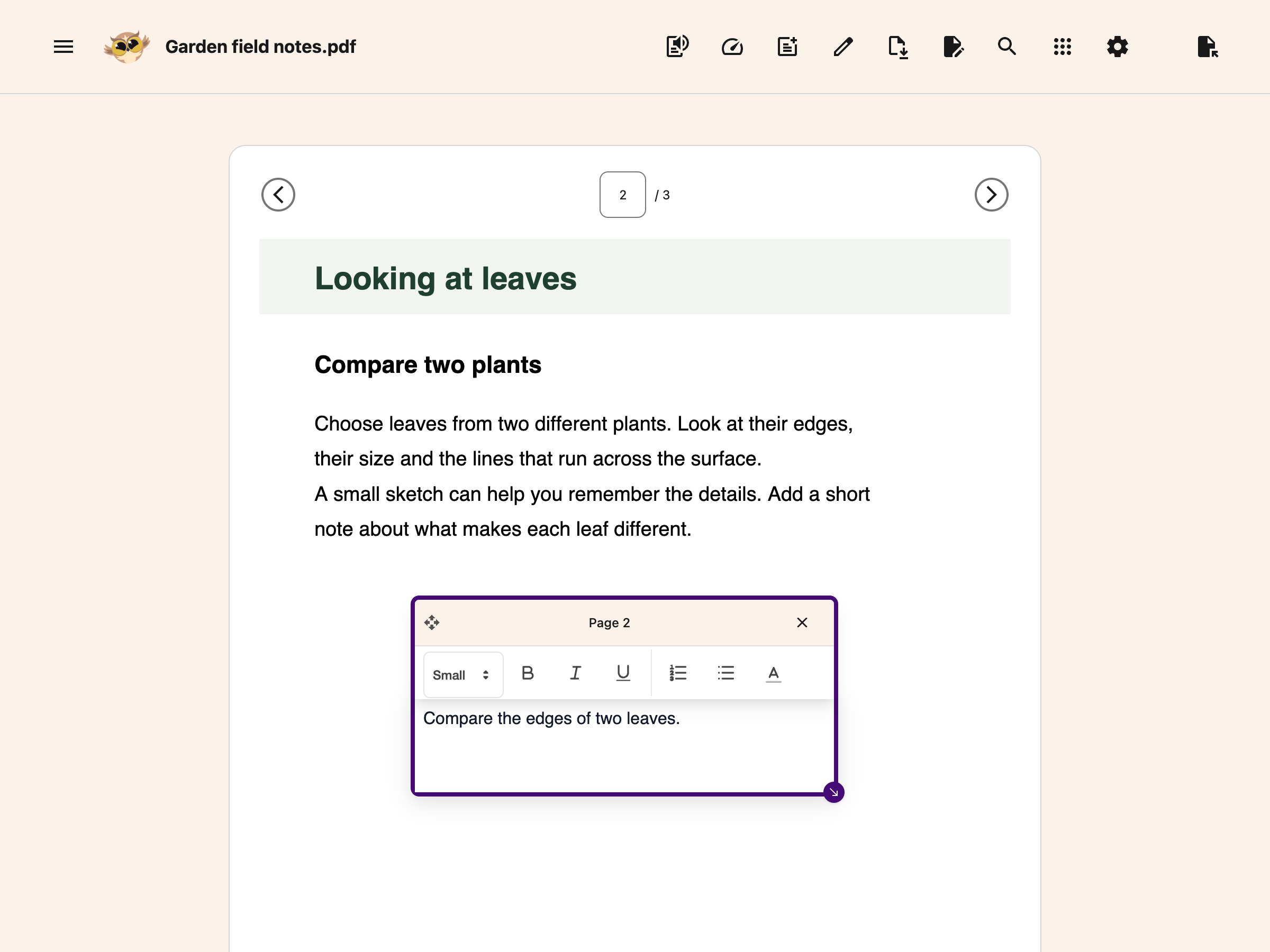
Helperbird lets you drop a text box anywhere on a PDF and type right into it. Fill in a form, answer a worksheet, label a diagram, or add a note in the margin - then download the PDF with your text baked in.
Learn how to add text boxes to PDFs
Related features
- PDF Reader - Open and read PDFs with all of Helperbird's accessibility tools.
- PDF Drawing Tools - Draw freehand, add shapes, arrows, and lines directly on PDFs.
- Annotations & Sticky Notes - Attach sticky-note comments to web pages.
- Voice Typing - Dictate into a PDF text box instead of typing it.
- Text to Speech - Have PDF content read aloud with natural-sounding voices.
What You Can Do
Add a text box anywhere: Choose Add Textbox, type your note, then move the box into place. Place as many boxes as you need across any page.
Format your text: Make it bold, italic, or underlined, and adjust the size so it fits the form field or the space you're filling.
Dictate instead of typing: Don't feel like typing? Use voice typing to speak your text straight into the box - handy for long answers or if typing is tiring.
Move, resize, and delete: Drag a box to reposition it, resize it to fit, or remove it if you change your mind.
Works across pages: Add text on any page of the document - your boxes stay put as you scroll and navigate.
Type, or Just Say It
Every text box works with Helperbird's voice typing, so you can write on a PDF with your voice. Open a box, start dictating, and your words appear as text - useful for filling long forms, answering worksheets, or anyone who finds typing slow or tiring.
Your Text Saves With the PDF
When you're done, download the PDF and your text boxes come with it - flattened into the document so they show up in any standard PDF reader. Share it, print it, or hand it in, and your writing is right where you put it.
How It's Different From Sticky Notes
Text boxes write onto the page, like filling in a form - the text sits directly on the document where you place it. Sticky notes are separate note bubbles you attach for comments and reminders, kept apart from the page content. Use text boxes to fill things in; use sticky notes to comment.
Who Uses This
Students filling in worksheets, lab sheets, and practice papers without printing.
Anyone completing a form that isn't set up as fillable - applications, intake sheets, permission slips.
Teachers adding answers, feedback, or labels to handouts.
People with motor or writing difficulties who'd rather type or dictate than write by hand.
Is This Free?
Adding text boxes, typing, downloading your PDF, and inserting content from the side NotePad are free. Voice typing, grammar correction and equation editing in the PDF Reader require Helperbird Pro.