Let the Page Scroll Itself
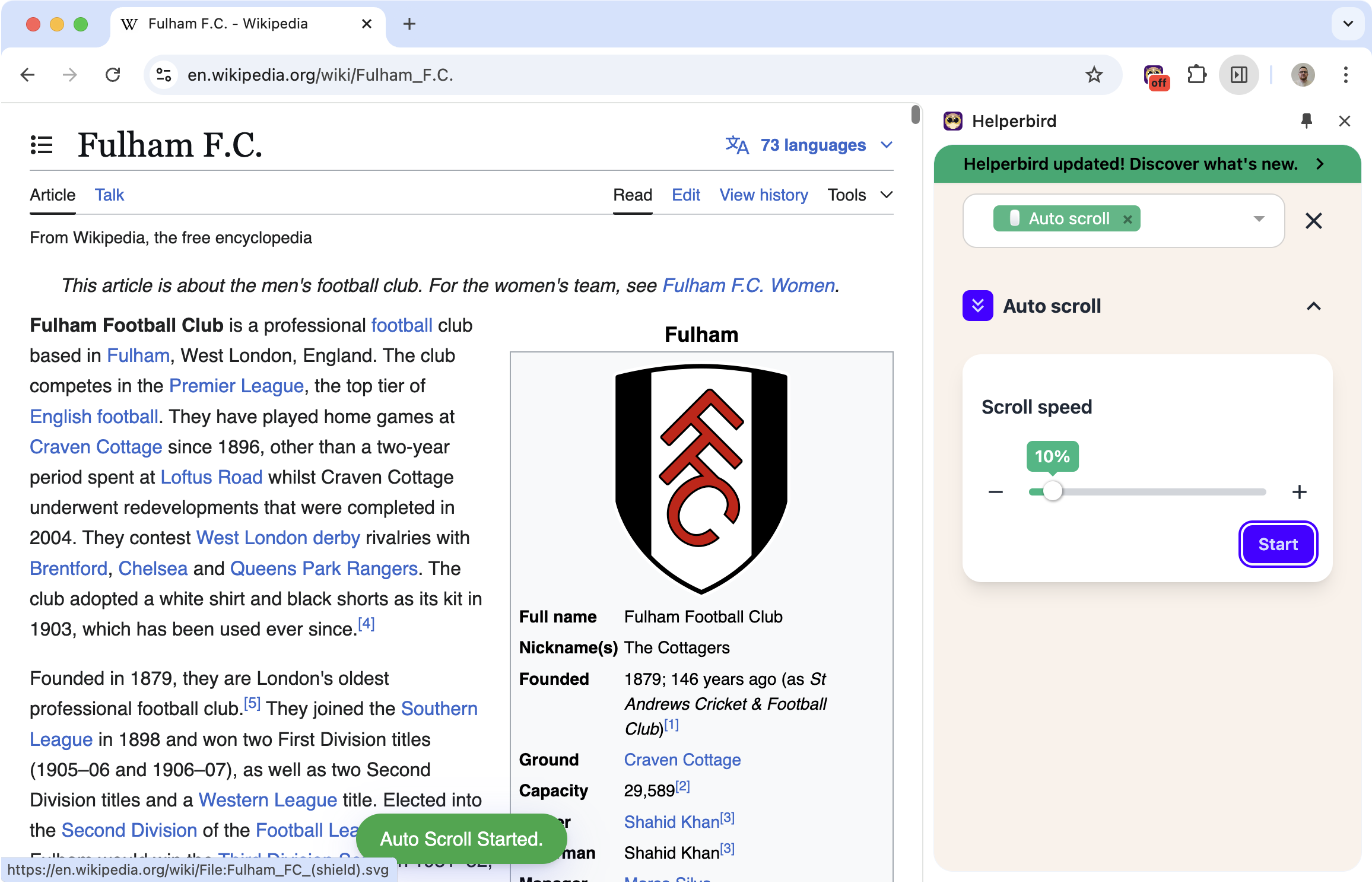
Reading a long article? Hands busy with something else? Just turn on auto scroll and let the page move at a steady pace while you read.
Helperbird's auto scroll keeps the page moving so you don't have to. Set the speed, sit back, and read.
Related features
- Reading Mode - Strip a page back to just its text.
- Text to Speech - Pair auto-scroll with read-aloud functionality for hands-free reading.
- Reading Mode - Combine auto-scroll with a clean, distraction-free layout.
Pick Your Speed
Not everyone reads at the same pace. Auto scroll lets you choose:
- Slow: For careful reading or dense content
- Medium: A comfortable pace for most articles
- Fast: For skimming or scanning through content
Click once to start. Click again to stop. Simple.
Why This Helps
Reading long content: No more constantly flicking your scroll wheel or trackpad. The page moves at a steady pace you control.
Following text-to-speech: Pair auto scroll with Helperbird's text-to-speech so the page scrolls along as the voice reads.
Mobility challenges: If using a mouse or trackpad is difficult, auto scroll removes that barrier entirely.
Presentations: Need to show a long webpage during a meeting? Auto scroll keeps things moving smoothly without fumbling with controls.
Who Uses This
People with motor difficulties who find constant scrolling tiring or painful.
Readers using text-to-speech who want the page to follow along.
Presenters showing web content in meetings or classes.
Anyone reading long articles who wants a more relaxed experience.
Is This Free?
Auto scroll is a Pro feature in Helperbird.