
Mark What Matters
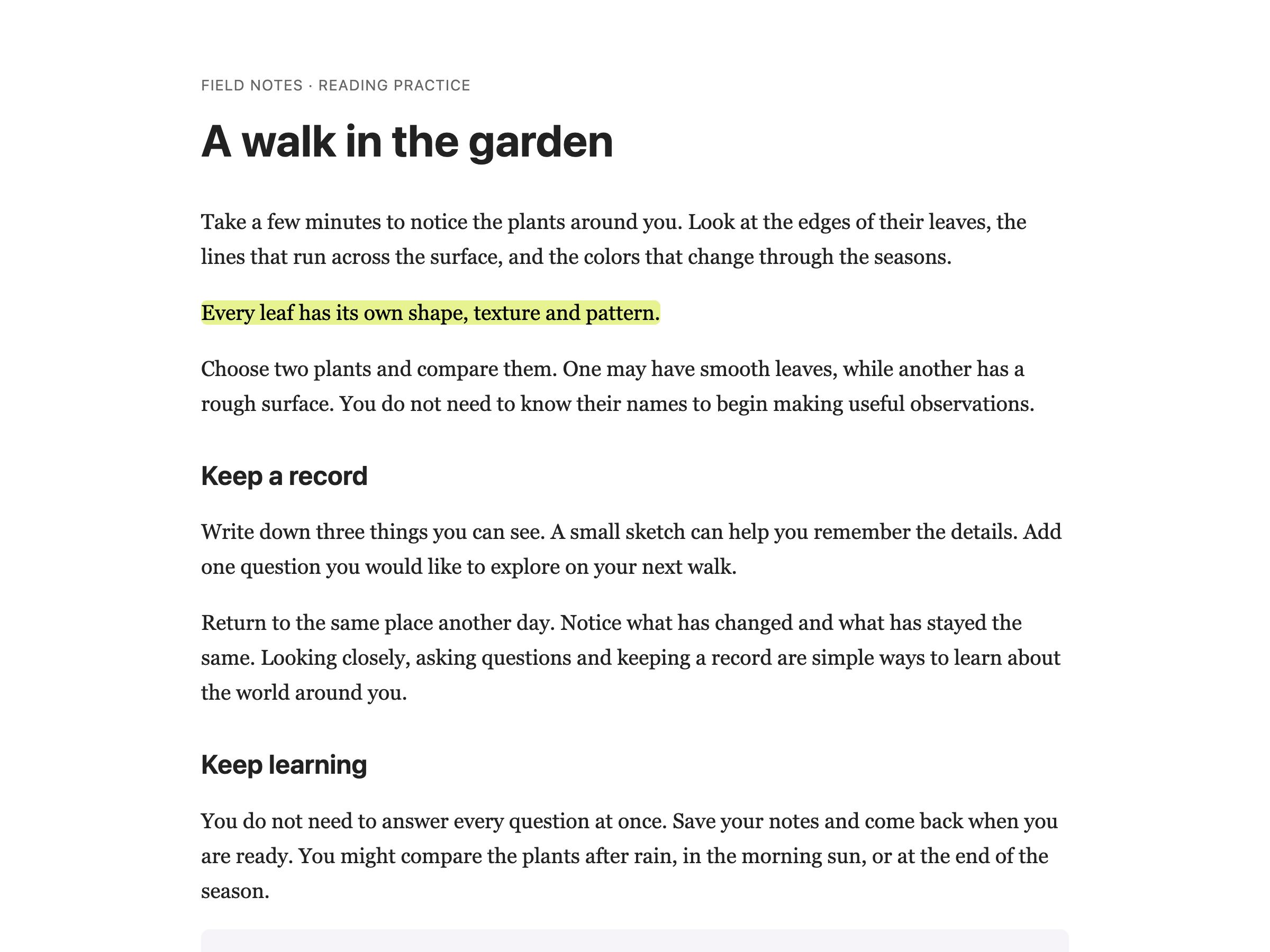
Reading something important? Highlight it. Different colors for different purposes. Come back later and your highlights are still there.
On a web page, select text and choose a color from the Highlighter palette.
Learn how to use the Web Highlighter
Related features
- PDF Drawing Tools - Draw shapes, arrows, and freehand marks directly on PDFs.
- Sticky Notes & Annotations - Pair your highlights with notes for deeper engagement with content.
- Note Organizer - View all your highlights and retrieve them from a centralized dashboard.
- PDF Reader - Read PDFs and annotate them with drawing tools and text boxes.
Multiple Colors
Use colors to organize your highlights:
- Yellow for key points
- Green for things you agree with
- Red for things to question
- Blue for definitions
Or use whatever system makes sense to you.
Your Highlights Stick Around
Highlights save automatically. Close the tab, come back tomorrow, they're still there. Return to a page you highlighted weeks ago and see exactly what you marked.
You can also export your highlights if you need them in another format.
Where It Works
Websites: Any article, blog post, or web content.
PDFs: The web Highlighter palette does not run inside Helperbird’s PDF Reader. Use PDF drawing tools or text boxes there.
Turn on Highlighter in All Features, then select text and choose a color from its palette.
Who Uses This
Students marking up research and study materials.
Researchers color-coding sources and findings.
Professionals highlighting key information in reports.
Anyone who wants to remember what was important on a page.
Is This Free?
Highlighting needs Helperbird Pro. Free users can still view saved highlights when Highlighter is on, but the creation palette requires Pro.
