This feature has been removed. It is no longer part of Helperbird, so what follows describes how it used to work. Nothing is gone for good: if you relied on it, tell us and we will look at bringing it back.
Quick Print Has Been Removed
Helperbird no longer includes the Quick Print button. This page stays online for people who bookmarked it.
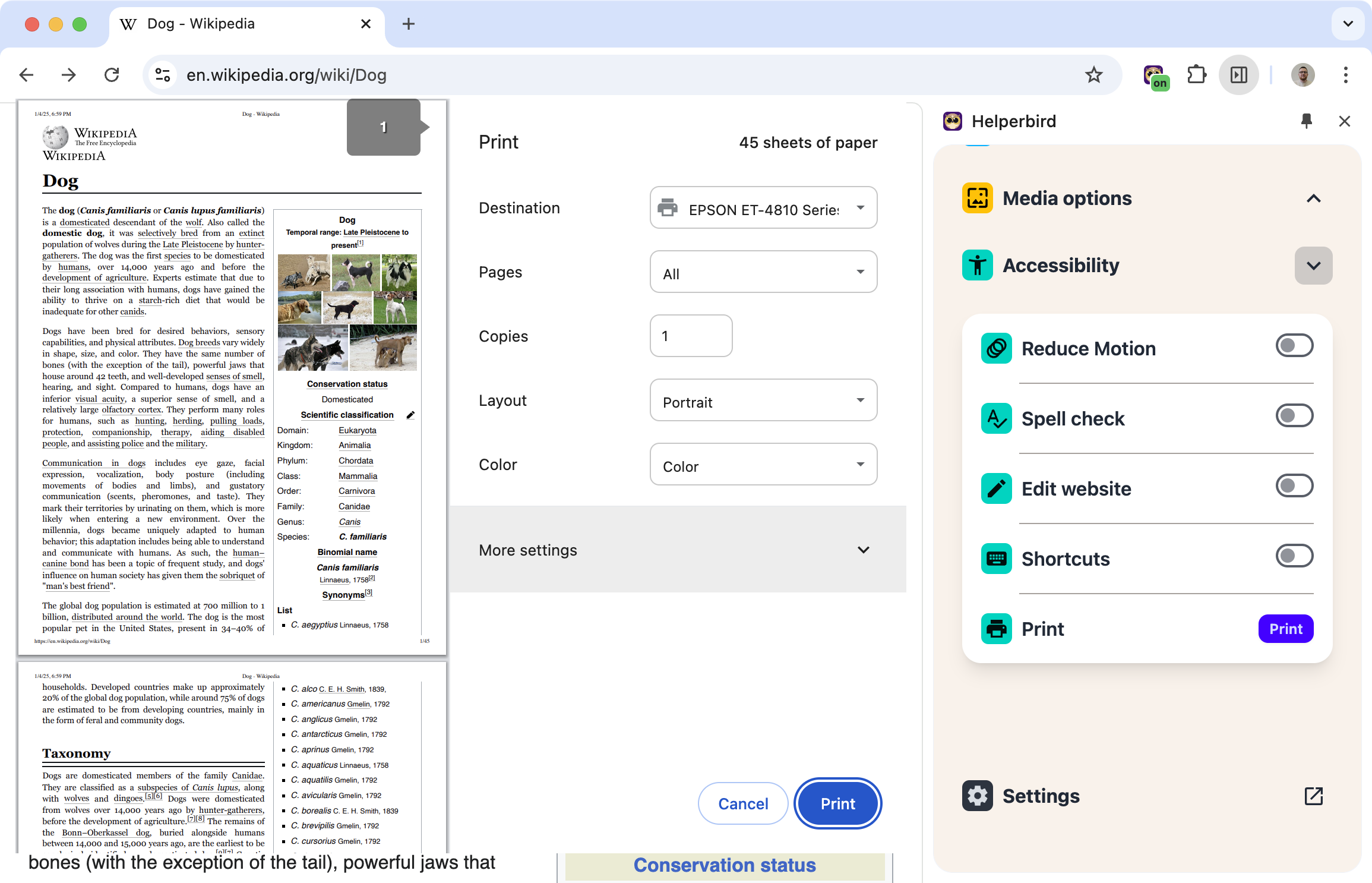
Here is the good news: you have not lost anything. The button only ever opened your browser's own print window. That window is still there, and it works exactly the same way.
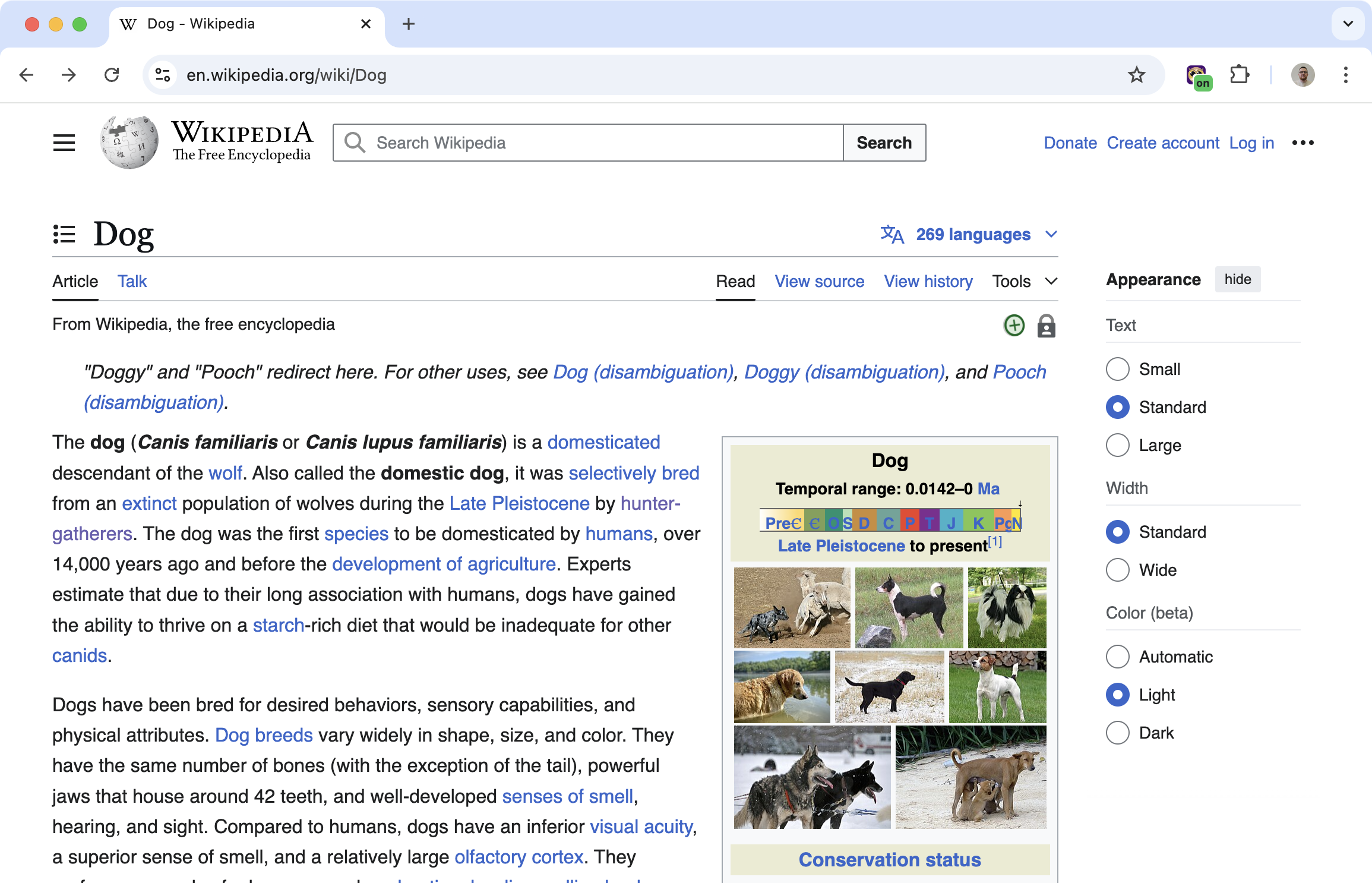
One nice extra: you do not need to turn Helperbird off before you print. Helperbird hides its overlays and color filters on the printout, so the page prints in its own colors. Your on-screen settings stay exactly as they are.
How to Print Now: Ctrl+P or Cmd+P
Your keyboard does the same job the button did.
- Windows and Chromebook: press Ctrl+P.
- Mac: press Cmd+P.
The print window opens right away. Pick your printer and click Print. You can also choose a page range, set the number of copies, or pick "Save as PDF" as the destination. Same result, one button fewer.
What to Use Instead
Two Helperbird features make printing even better:
- Reading Mode — turn it on before you print. It strips out ads, menus, and clutter, so only the article is left. Then press Ctrl+P or Cmd+P for a clean printout that saves paper and ink.
- PDF Reader & Annotator — want to keep a page instead of printing it? Choose "Save as PDF" in the print window. Then open that PDF with Helperbird to read it your way and add notes and highlights.
See Everything Helperbird Can Do
Helperbird keeps growing. Browse the full list of current features at helperbird.com/features.